Windows 11 Present not just as a successor to Windows 10, but as a giant leap that brings the computing experience to a new level. With a fresh modern look and a series of innovative features, This operating system is designed to support productivity, creativity, as well as the convenience of everyday users.
This article will review various new features in Windows 11 which makes it even more relevant in the digital era, as well as a strong reason why you need to upgrade to Windows 11.
List of contents
List of New Features in Windows 11
Copilot
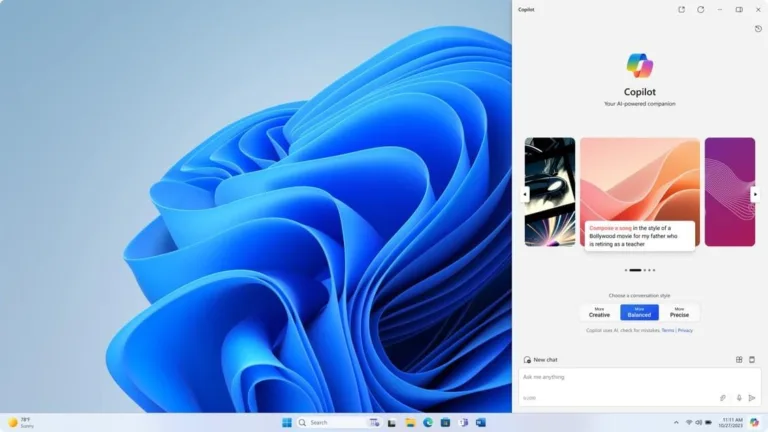
Windows 11 introduce Copilot, Built-in AI assistant that helps answer questions, give recommendations, and speed up daily work. Its presence makes interactions with computers feel more personal and productive.
You can ask Copilot various questions in Windows 11, from simple to complex. Copilot on Windows has the ability to use context from Microsoft Edge to improve responsiveness. You can ask it to summarize the web page you're viewing without having to provide a website address or copy and paste long text.
You can also command Copilot to perform common tasks and change settings in Windows, such as changing the Windows theme from light mode to dark mode, enable do not disturb, or add a Bluetooth device.
Copilot, Windows new features 11 This featured one is installed automatically even if you never install it. You can access Copilot on Windows 11 quickly using hotkeys Windows + C, or use the Copilot icon located at the far right of the Taskbar.
You can too disable Copilot in Windows 11 if you don't want it.
Snap Layouts & Snap Groups
A multitasking feature that allows users to arrange application windows in various layouts with a single click. Different layouts are available with many sizes for you to choose from, so you can maximize your favorite applications when working on certain tasks.
To use this feature in Windows 11, You can do this by pressing the button Windows + Z, or hover over the maximize window button, then select a snap layout for the currently open window. You can also choose the position of the window layout by pressing the number listed on the Snap layout.
Besides that, You can also use the Snap feature in Windows 11 by pressing the button Windows + arrow ton or left arrow. This way it will automatically change the window to the left or right side of the screen perfectly so you don't have to resize or position it manually.
Widgets Panel
This panel functions as a real-time information center that displays the weather, latest news, calendar, notes, to updates from applications connected to a Microsoft account. Its advantage lies in its ability to present important information concisely without having to open a separate application, thereby saving time and maintaining work focus.
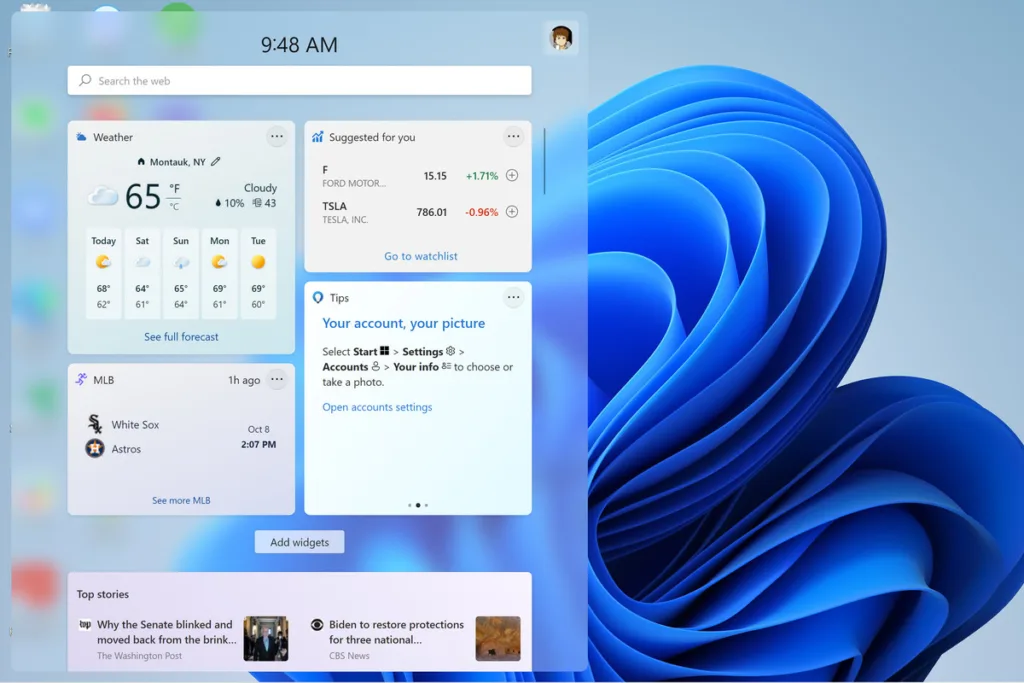
Image source: theverge.com
Besides that, Widgets can be personalized according to needs, for example adding a productivity widget for the daily schedule, or entertainment widgets for the latest news and trends. The modern appearance with transparency and smooth animations also makes interactions feel more comfortable and consistent with Windows' elegant design 11.
To access Widgets Panel, Windows 11 provides several flexible methods according to the device used. The simplest way is to click the Widgets icon in the taskbar, usually in the form of a panel or displaying weather information. If you want it faster, Users can press a combination of buttons Win + W on the keyboard to directly open the panel.
For touch screen devices, Widgets can be accessed by swiping from the left side of the screen to the center, making it more intuitive for tablet or laptop hybrid users. This practicality makes it one of Windows' superior features 11 that truly supports user productivity and convenience in one simple step.
Android Application Integration
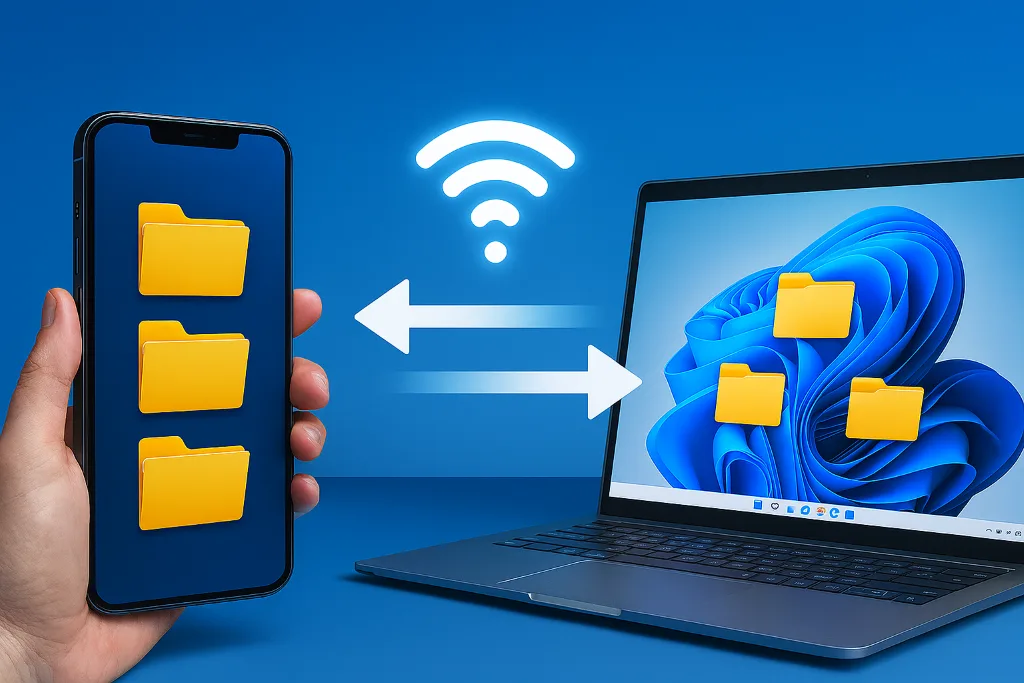
One of the new features in Windows-11 is Android app integration. This feature allows users to run Android applications directly on their computer without the need for a third-party emulator. This feature works through Windows Subsystem for Android which creates a virtual environment to run Android applications natively. With this integration, Users can access favorite applications such as TikTok, Instagram, or even educational and productivity apps right from the desktop.
This is very useful for content creators, student, or business people who want to combine mobile and desktop ecosystems in one device, so that the workflow becomes more efficient and flexible.
To use this feature, users need to access Microsoft Store and download the app Amazon Appstore, which is the gateway to various compatible Android applications. After the Appstore is installed, Users can explore and install Android applications as usual. Some applications can also be used-pin to the taskbar or Start Menu for quick access.
So that this feature runs smoothly, the device must meet certain system requirements such as virtualization support and sufficient RAM. Once everything is ready, experience using Android applications on Windows 11 feels seamless and integrated, as if the application was designed for the desktop.
Gaming Enhancements (DirectStorage & Auto HDR)
Windows 11 brings huge improvements to gamers through DirectStorage And Auto HDR. DirectStorage allows games to load data directly from the SSD to the GPU without going through the CPU, so loading time is reduced drastically. Auto HDR automatically adds a wider color range to games that didn't previously support HDR, making the display more realistic and immersive.
The advantage is a faster gaming experience and richer visuals without the need for complicated configuration. To use it, make sure the device has an NVMe SSD and a DirectX compatible GPU 12 Ultimate. HDR can be activated via Settings > Display > HDR, while games that support DirectStorage will automatically take advantage of this feature.
More Flexible Virtual Desktops
Feature Virtual Desktops di Windows 11 now more personal and flexible. Users can create multiple desktops with different settings, includes unique wallpapers, application layout, and separate work focus. For example, one desktop for work, one for entertainment, and one to study.
The advantage is the ability to separate activities so that focus is maintained. To use it, just click the icon Task View in the taskbar or press Win + Tab, then select "New Desktop". To move between desktops, use shortcuts Ctrl + Win + Left/Right Arrow. With this, You can organize your workspace according to your daily needs.
Integrated Microsoft Teams
Windows 11 pin Microsoft Teams directly on the taskbar, facilitates personal and professional communication. Users can make video calls, chat, or meetings without having to open additional applications. This integration also supports syncing contacts from Microsoft accounts.
The advantage is fast access to collaboration, especially useful for remote workers or content creators who frequently communicate with teams. To use it, click the Teams icon on the taskbar, login with a Microsoft account, then start chatting or calling. This feature makes communication more seamless and integrated with the operating system.
Modern Design & Fluent UI
One of the new features in Windows 11 what users immediately feel is the modern design and Fluent UI, New design style featuring rounded corners, transparency (Mica), and smooth animations. The interface feels lighter, elegant, and consistent across applications. Visual elements such as windows, menu, and icons are designed to be more intuitive and enjoyable.
The Start icon and menu are placed in the center of the screen, different from previous Windows which was always on the left. The middle position makes the visual focus more natural, as well as minimalist design without Live Tiles feels more modern.
The advantages are not only aesthetic, but also comfort of use. Transitions between applications are smoother, and a clean appearance helps users focus on the content. There is no need for special settings to activate it because Fluent UI is built into Windows 11. However, You can customize the theme and visual effects via Settings > Personalization > Colors And Themes.
Hardware Based Security (TPM 2.0 & Secure Boot)
Windows 11 set new standards by making them mandatory TPM 2.0 And Secure Boot. TPM is a chip that securely stores encryption keys and sensitive data, while Secure Boot ensures only trusted software is run when booting.
The advantage is stronger protection against malware, ransomware, and firmware-based attacks. To check support for this feature, open Settings > Update & Security > Device Security. If the device meets the requirements, this feature is active by default. With hardware-based security, Windows 11 better prepared to face modern cyber threats.
Windows-10 vs Windows-11 comparison
| Feature | Windows 10 | Windows 11 |
| Copilot | Not available | Integrated AI assistant for productivity |
| Snap Layouts & Snap Groups | Snap Assist is simple | Advanced multitasking layouts with window groups |
| Widgets Panel | There isn't any | Real-time information panel (weather, news, calendar) |
| Android Application Integration | Not available | Supports Android applications via Amazon Appstore |
| Gaming Enhancements | DirectX 12 | DirectStorage & Auto HDR for gaming performance |
| Virtual Desktops | Ada, but limited | Flexible with wallpaper & unique setting |
| Microsoft Teams | Separate application | Integrated directly in the taskbar |
| UI Design | Flat design, sharp corner | Fluent UI with rounded corners & Mica effect |
| Hardware Security | Optional TPM | TPM 2.0 & Secure Boot is mandatory |
Conclusion
With the presence of new features in Windows 11, users gain benefits in the form of a more productive work experience, safe, and fun. Copilot And Widgets Panel helps provide intelligent information and support instantly, temporary Snap Layouts, Snap Groups, And Virtual Desktops improve multitasking efficiency.
Integration Android application expand the application ecosystem, And Gaming Enhancements providing better performance and visuals for gamers. On the communication side, Microsoft Teams integrated makes collaboration easier, whereas Fluent UI gives an elegant modern look. Plus with hardware-based security (TPM 2.0 & Secure Boot),
Windows 11 not just an evolution of Windows 10, Microsoft is making big strides towards a smarter operating system, safe, and blend with modern needs.
Hope it is useful.