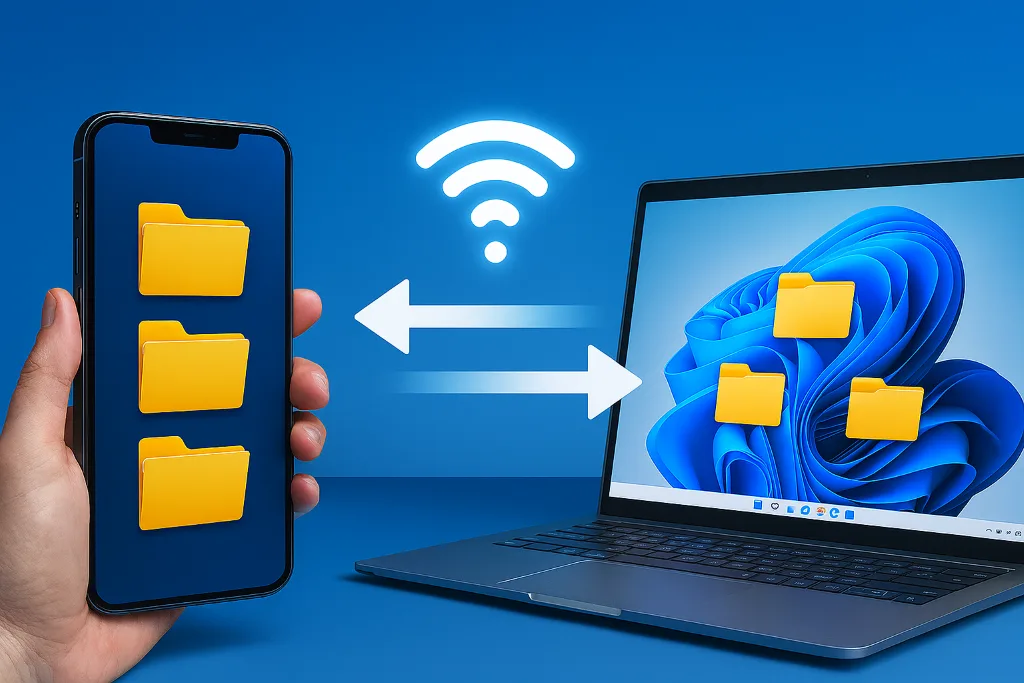
You can transfer data from your cellphone to your PC-Laptop quickly without cables via Wi-Fi. This article will show you a fairly easy method, efficient, doesn't take up space, The transfer speed is stable and has been proven to work without problems.
Different from How to transfer data from PC to cellphone without cables which uses the SMB protocol (Server Message Block), This method of transferring data from cellphone to PC/Laptop via WiFi uses the FTP protocol (File Transfer Protocol). The FTP protocol is known for its excellent speed.
By following this guide, You can move files quickly and stably without data cables from your cellphone to your PC/Laptop Windows. You just need to practice a few more steps at the beginning, Then you will enjoy convenience and speed when transferring data.
List of contents
Steps to Transfer Data from HP to PC-Laptop via WiFi
The method for transferring data from HP to PC/Laptop in this guide is to access the HP storage space from a Windows PC or Laptop. In this way you can transfer data using Copy-Paste in Windows Explorer.
The steps for transferring data from cellphone to PC consist of two main stages. The first stage is carried out on an Android phone. The second stage is done on a PC or laptop.
This method requires an appFile Explorer which supports FTP on your cellphone. Of the several File Explorer applications that we have tried, Cx File Explorer is the best choice in our opinion (at least when this article was written).
Cx File Explorer has a simple and easy to use interface and is very light. To use this application there is no need to register an account, without subscription and ad-free.
Level 1: Steps on an Android cellphone
Open your cellphone then do the following:
- Download and install application Cx File Explorer from Google Play Store.
- Activate hotspot on cellphone you through Settings > Network & internet > Hotspot & tethering > Hotspot Wi-Fi.
- Connect your laptop to Hotspot created by your cellphone, just like when you connect to a regular Wi-Fi network, by entering a password if required.
- Open the Cx File Explorer application. In the Cx Explorer application, Select a tabNetwork then select the menuAccess from network
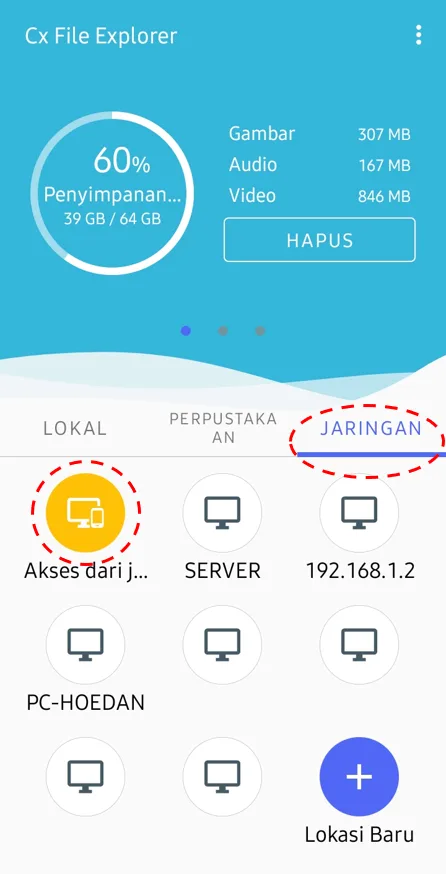
- Activate the Remote feature (FTP Server). In the Access from network view, click the button START to start the file access service from another device, such as a PC or Laptop.
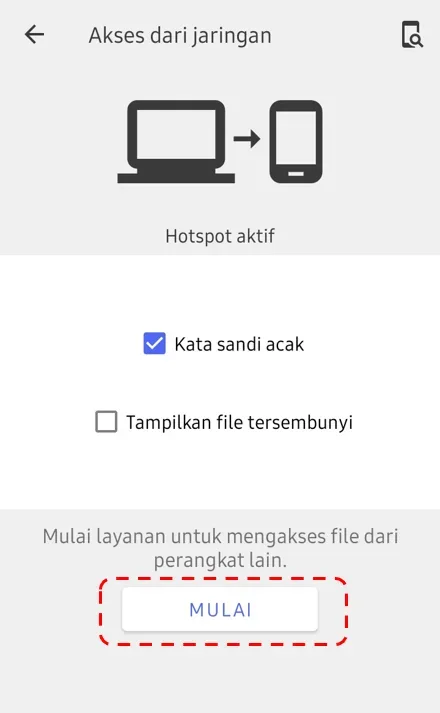
- Prepare Address, Username and Password. After Cx File Explorer activates the FTP server, the application provides an address, username and password that you will use to access files on HP in the second step. These settings will vary for each device, in this example the settings are as follows:
- address: ftp://192.168.219.146:3341
- username: pc
- password: 12345.
Level 2: Steps on PC/Laptop
After completing the steps in the first level, Continue the following steps on your PC/Laptop:
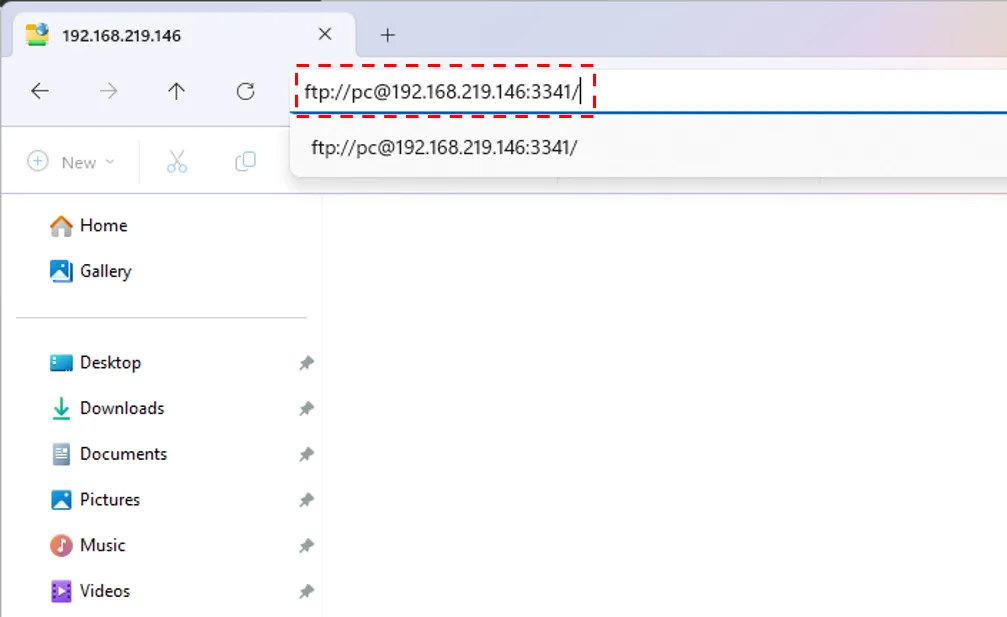
- Open Windows Explorer. Press the buttonWindows + E to open Windows Explorer. In the address bar type the address you have prepared in the first step, in this example the address is: ftp://192.168.219.146:3341 then press Enter
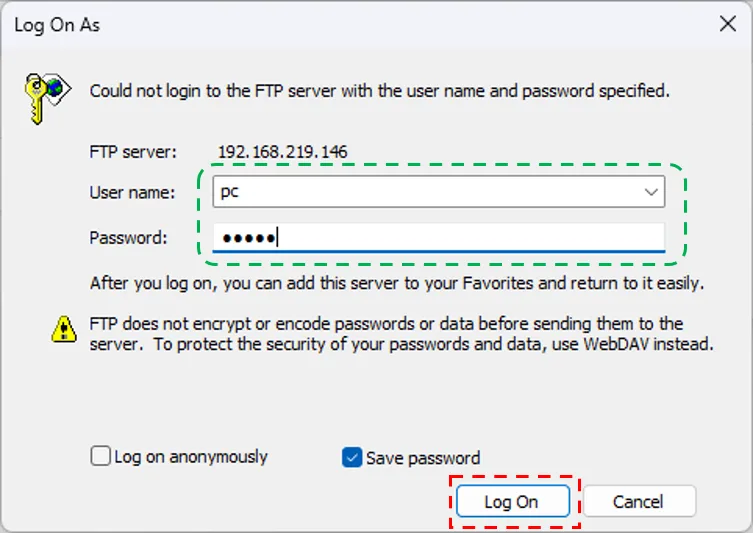
- Access the HP folder via FTP. After typing the address and pressing Enter, a window will appear Log On As. Enter User name And Password which you have obtained in the first level, then press Enter or click the button Log On
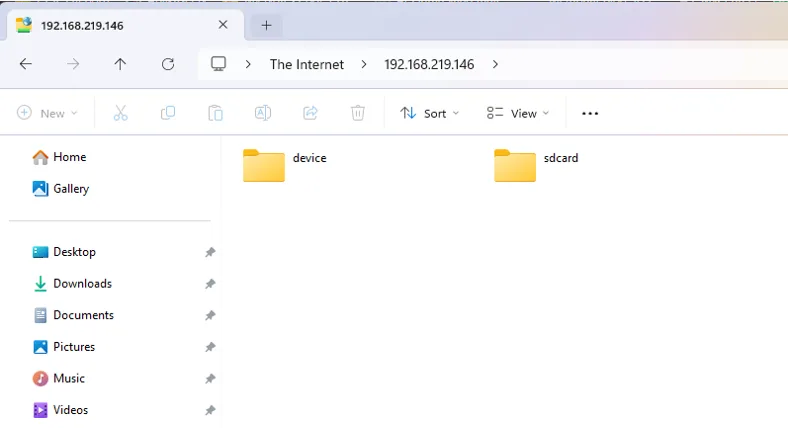
- Copy from cellphone to PC/Laptop. Next, you will find a folder on the Android phone's internal memory and a folder on the external memory if you have one. Here you can copy the contents of the folder from your cellphone by: Copy-Paste as usual to the folder on your PC/Laptop.
Conclusion
By following the steps above, You can easily transfer data from your cellphone to your PC-Laptop via Wi-Fi without the need for data cables or confusing complicated applications.. This method only uses the Copy-Paste feature in Windows Explorer and has been proven successful with stable speed.
Hope it is useful.