If you want to change an Office document, PowerPoint, Excel or Word to PDF for immediate sharing, you can without any additional applications. This guide will explain two easy ways to convert PowerPoint files, Both Excel and Word become PDF in Windows 10/11.
Portable Document Format (abbreviated as PDF) is a file format created by Adobe Systems in the year of 1993 for digital document exchange needs. The PDF format is used to represent two-dimensional documents that include text, letter, two-dimensional vector images and graphics.
You can change PowerPoint files, Excel or Word to PDF in one of the following two ways. The first one uses options Save As in PowerPoint, Excel or Word and the second uses Microsoft Print to PDF.
List of contents
Convert Excel-Word to PDF with Save As
To modify a PowerPoint document, Excel or Word to PDF with Save As. Follow these steps:
1. Open Documents
Select and open the document you want to convert to PDF, PowerPoint, Excel or Word.
2. Select the Save As option
Once the document is open, select the File menu in the top left corner of the application. On the menu File, choose Save As Then select Browse to select the location where you want to save the file

3. Select PDF (*.pdf)
On choice Save as type choose "PDF (*.pdf)”, then click Save to convert and save documents as PDF.

Convert Excel or Word to PDF with Microsoft Print to PDF
If you can't find the option Save As in the Office application that you use, you can change the PowerPoint document, Excel or Word into PDF using options Microsoft Print to PDF. To do it, Do the following steps:
1. Open Documents
Select and open the PowerPoint file, Excel or Word that you want to convert to PDF.
2. Go to Print option
Press the button CTRL + P on the keyboard to open printing options, then click Printer selection, Then select Microsoft Print to PDF

3. Save Document
After you choose Microsoft Print to PDF in the Printer option, click the button Print then window Save Print Output As will be open. Select a location and type the name of the PDF document you want, then click the button Save
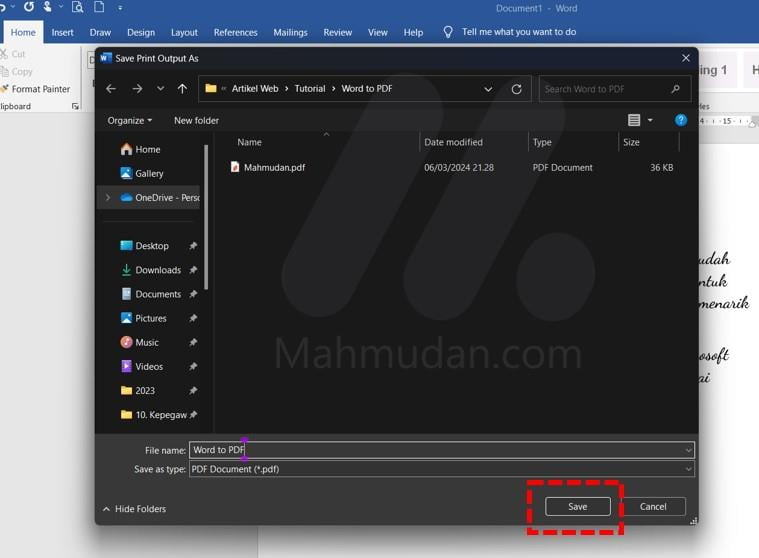
Finished, by choosing one of the methods above, You can easily save or change PowerPoint documents, Excel or Word becomes PDF instantly without needing to download another application.
Even though this guide only shows pictures using the Word application, The following steps can be practiced in PowerPoint and Excel applications, because Office applications have the same menu layout.
Apart from sharing PDF files directly, you can too displays PDF files on web pages without using plugins.
If you are using a cell phone, you can too Convert Word files to PDF on Android phones without using an application.
Hope it is useful.