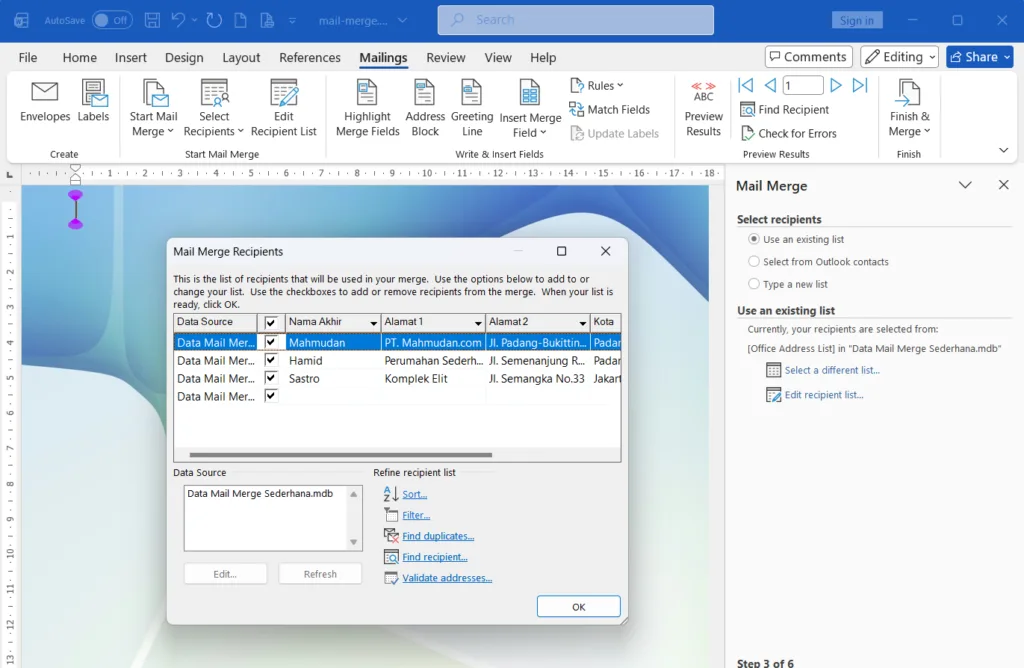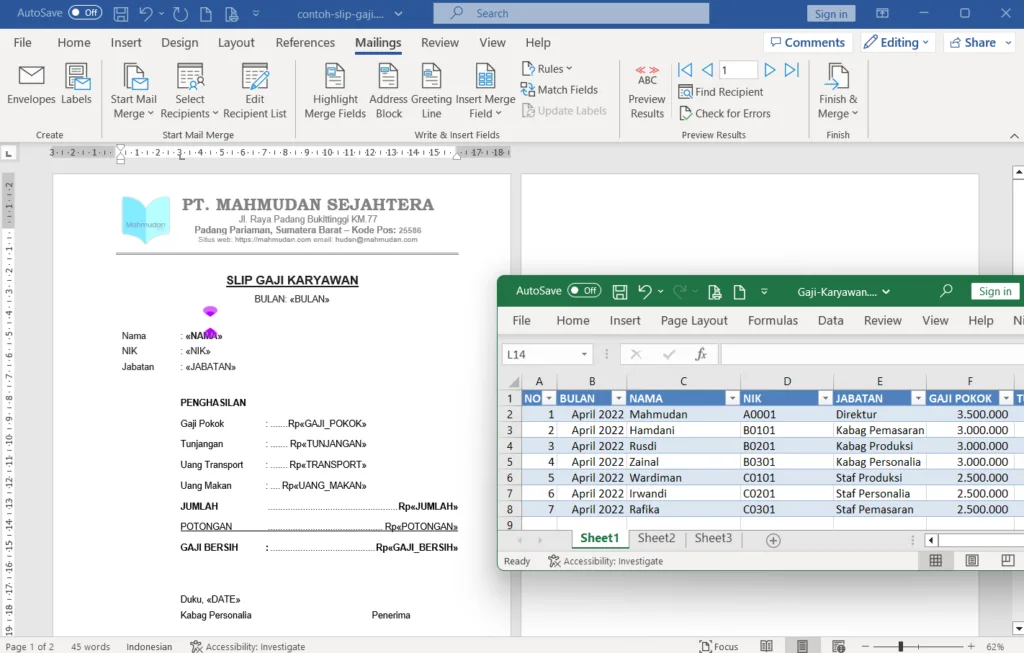
In this article, Mahmudan will show you how to create a Mail Merge in Microsoft Word with data from Excel. Here you will learn how to connect data, displays the results, to print documents automatically. Besides that, There are also solutions available to overcome problems that may arise.
Mail Merge is a feature in Word that makes it easy for us to create multiple documents at once, with different data contents for each recipient. So, You don't need to bother copy-pasting or editing one by one. The results are faster, neat, and consistent.
Imagine you want to make an invitation letter, certificate, or payslips for many people. The document format is the same, but the data is different. Nah, Mail Merge will fill in this data automatically so that work becomes more efficient. Otherwise use Mail Merge, You have to type the data manually in each document or copy the formatting to multiple pages. This method clearly takes time and energy, and prone to errors.
Besides being able to make Mail Merge simple by inputting data directly, Mail Merge by Microsoft Word can also be connected directly to Excel data. Therefore, You just need to prepare a list of names, address, or other data in Excel, then Word will pull the data automatically. Sadly, there are still many who don't know how to do it. Because of that, This guide will explain step by step.
This guide has been put into practice in Office 2021 and can also be practiced in the Office 2013. If you still use Office 2010, There are special tricks that will also be discussed so that you can still run Mail Merge well.
List of contents:
Preparation
To create Mail Merge Word with Excel data. You need to prepare two required documents, namely:
- A Word document containing a template for the letter or form to be shared. Sample: Income Certificate
- Excel document containing a table with data on letter recipients. Make sure each column has a title (sample: No, Address, Date). Learn how to create a table in Excel.
Important:
The table column title in Excel that will be used must be in the first row in the Sheet.
Steps to Create Mail Merge Word with Excel Data
1. Connecting Mail Merge Word with Excel Data
After all the required documents are available, The first step you need to do is connect Mail Merge to a data source, namely a table in an Excel document. Look example of Mail Merge Word file with Excel data
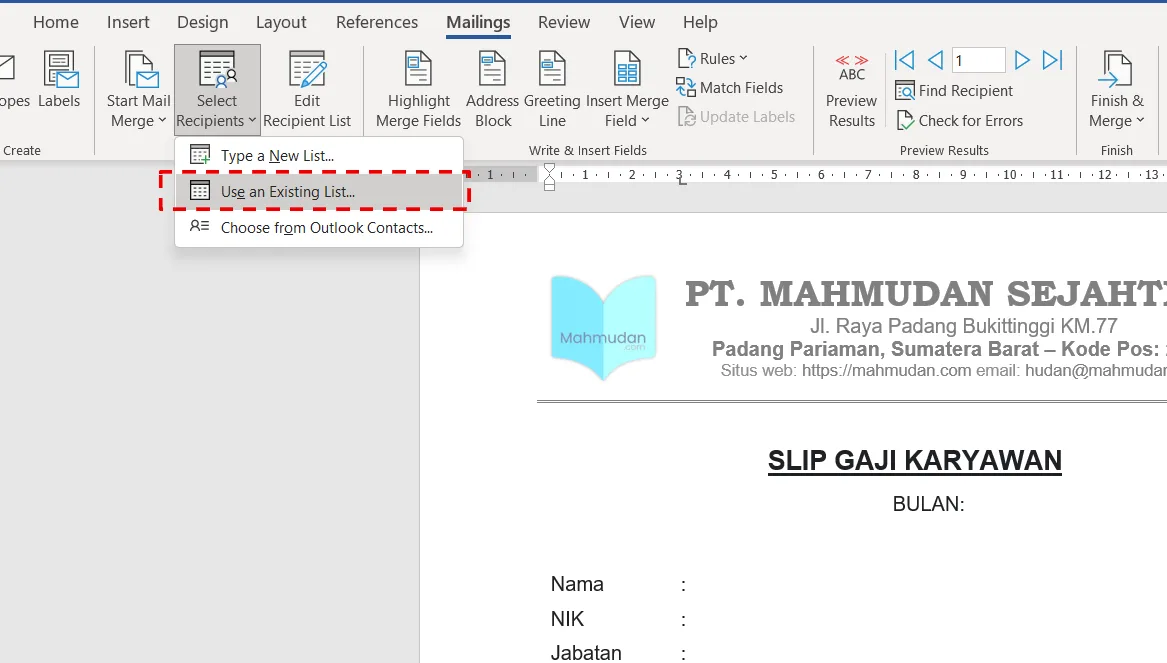
To connect mail merge in Word with Excel data, Open the Word document that you have prepared, Select a tab Mailings, choose Select Recipients then select Use Existing List.
Window File Explorer Select Data Source will be open. On the window File Explorer Select Data Source, Select the Excel document that you created previously, examples in this guide are Employee Salaries.xlsx

After selecting the Excel document, a dialog box will appear Select Table, choose Sheet which contains the table you created, then click OK

2. Inserting Mail Merge Fields into a Word Document
After selecting Sheet which contains a data table in an Excel document, Table column headings will appear as Mail Merge fields. This field acts as a placeholder to display data from the Excel table used.
On tabs Mailings, part Write & Insert Fields click Insert Merge Field, You will see the field names according to the column headings in the Excel table.
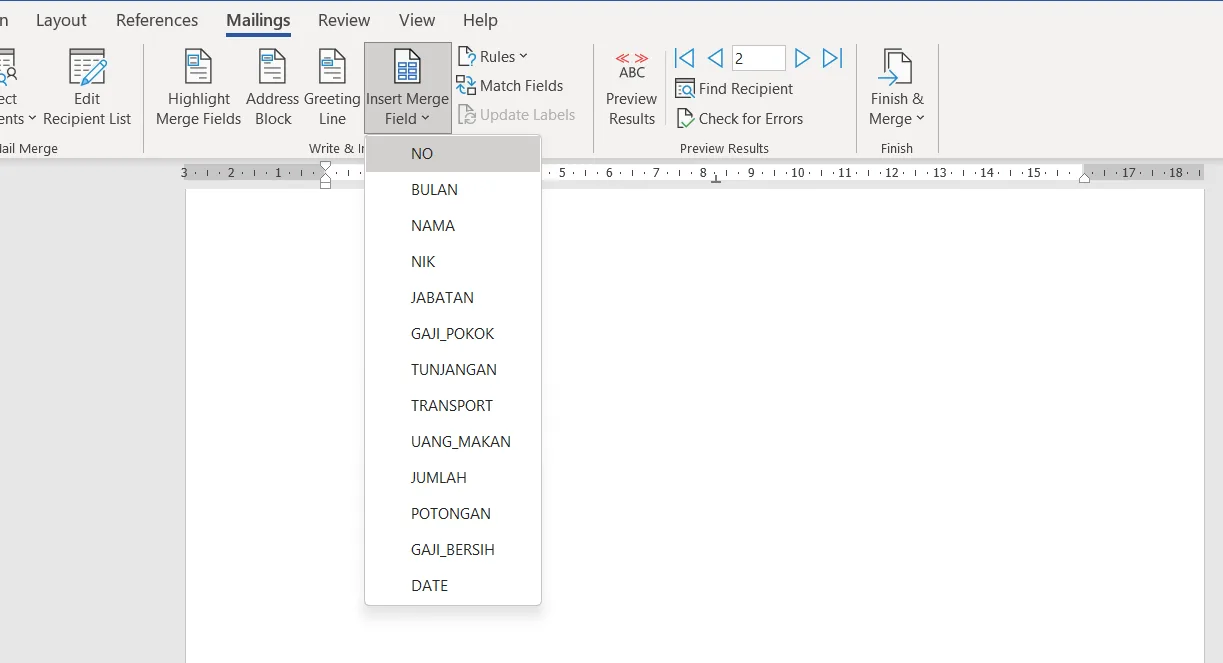
The next step is to insert each Mail Merge field name into the Word document in the position you want.
How to enter the Mail Merge field: Click the line or paragraph where you want to place the field then select the appropriate field, for example in a paragraph No select a field NO and so on. Repeat for all other fields.
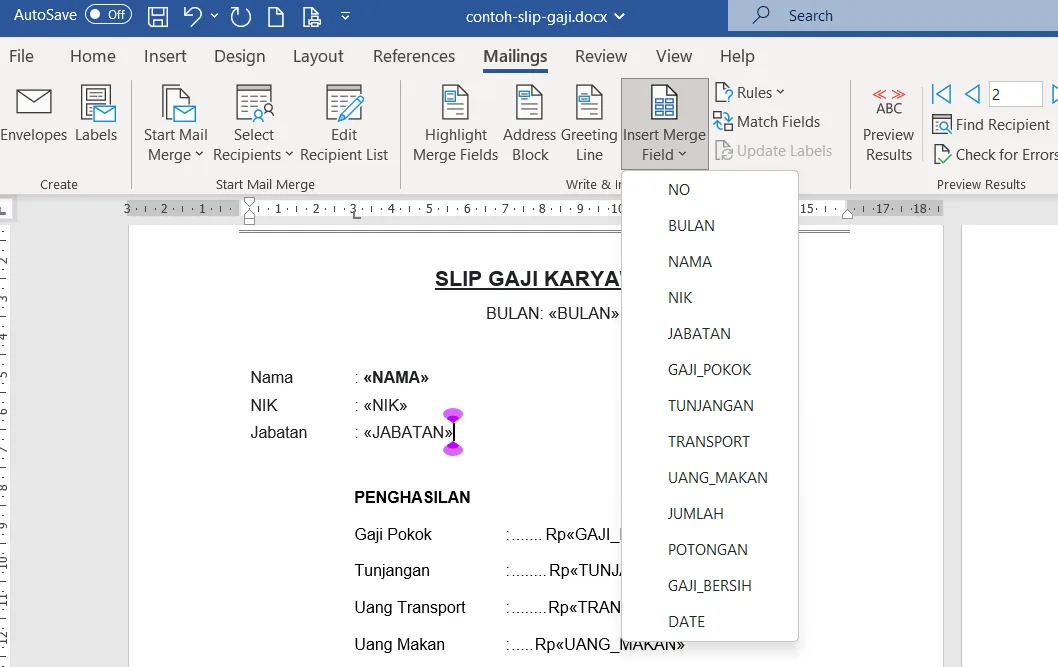
3. Displaying Mail Merge Field Data in a Word Document
Once all the Mail Merge field names are entered into the Word document, Next, you can display the Mail Merge results data from Excel.
Pad tab Mailings click Preview Results, then the application will display data one row per impression, the first order data in the display is the data in the first row in the Excel table. To display data in other rows, use navigation to move to the next or previous data.
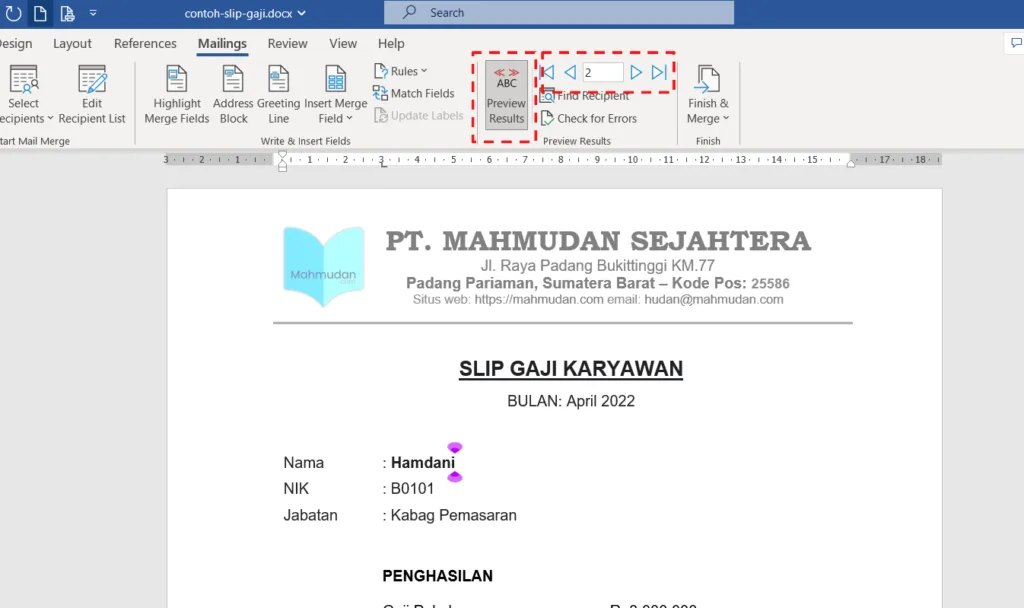
Apart from using navigation, You can also choose directly to a particular data row number by typing the serial number based on the data sequence in the Excel table.
You can also display data based on certain keywords using the search feature. Press the button Find Recipient then type the keywords you want to find, for example a person's name, address or city.
4. Print Mail Merge Documents in Word
You can print Mail Merge documents in Word in two ways. The first way to print is using the regular print command with a shortcut Ctrl+P, This method can be used when you only want to print one line of displayed data.
The second way to print is using the print command from Mail Merge. Printing from Mail Merge is used if you want to mass print several lines of data at once.
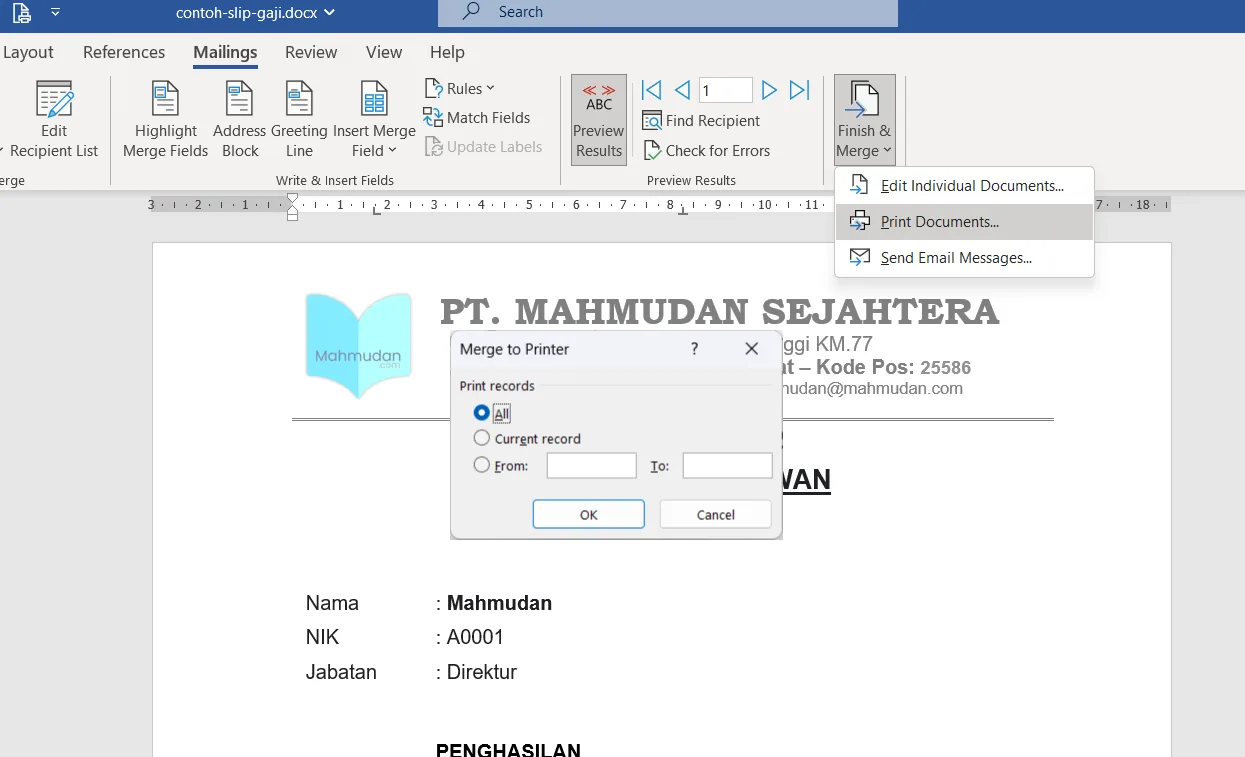
To print from Mail Merge, on tabs Mailings click Finish & Merge, then select Print Document. In the dialog box Merge to Printer, You can select the row number of data you want to print, All, Current Record or a specific row range.
Until here, the steps to create a Mail Merge in Microsoft Word using Excel data have been completed. In the section above Mahmudan has explained step-by-step how to connect the data, displays the results, to print documents automatically
Even though you have followed the above guide carefully, Sometimes you encounter other things that might happen that are not as expected and require problem solving.
Troubleshooting Mail Merge
In practice, There are several common problems that often arise when creating Mail Merge Word with Excel data:
- The Word–Excel connection is not connected. Many times Word fails to read Excel files. The solution, make sure the Excel file and Word document are in the same folder. Avoid moving files after the Mail Merge process has started, because it can cause the connection to be lost.
- Data is not filled in correctly. Sometimes information from Excel doesn't appear as expected in a Word document. This usually happens because the data format is different or there are inconsistencies in the data source. Make sure you vote Sheet which is true, and check whether the table is neat without empty rows at the top.
- The data format is not as it should be. Mail Merge results do not meet expectations, for example the date is not displayed in the format it should be, or the number format does not use the thousands separator. To solve this, You can make manual adjustments to the Word document as in the example below.
Formatting Mail Merge Field Data
You may need to format the Mail Merge fields manually so that the data appears according to the expected design. Mail Merge field formatting is usually done for some special data such as numbers and dates.
For example, The salary data displayed is Rp1000000, it should be with a thousand separator to be Rp1.000.000. The date data displayed is 01/01/2022, it will be easier to read if you use the complete format, namely 1 December 2022.
To format Mail Merge fields in Word as above, follow the steps below:
- Right-click the field for which you want to change the format, then click Toggle Field Code

- To format numbers with thousands separators, add code\# #.##0 after the field name, like the example below:

Repeat steps one and two above for each data that uses the same format.
- To display the date in a format suitable for the Indonesian region, for example 12 April 2022, add \@”dd MMMM yyyy” after the field name, as follows:

After formatting all the required fields, the results will look like below:

Finished, Now all Mail Merge data appears in the proper format.
If you are still experiencing failure in creating Mail Merge with Excel data, for example, the data that appears does not match the expected format, or data cannot be connected. This might happen because you are using an older version of Microsoft Word. To solve this problem, You can try the special trick below.
Special Tricks for Mail Merge Word in Office 2010
This special trick of Mail Merge Word with Excel data can only be applied to Office products 2010 or older versions. With this trick, Mail Merge will display data according to the format specified in the Excel document without the need to change the format of the mail merge field in the Word document.
On Office 2010, to display Mail Merge data to match Excel format, follow the following steps:
- In a Word document that you have connected to Excel, open Word options settings, open the tab File then select Options.
- At the window Word Options, click the menu Advanced then select (tick) option Confirm file format conversion on open

- Click OK, then save and close the Word document.
- Reopen the document Word which has been connected to Excel.
- When opening the document, A confirmation dialog box will appear as shown below, then click Yes

- Once the document is open, repeat connecting Mail Merge Word with Excel data. This step aims to activate a new connection to select the data source and connection type.
- When you select a document Excel, a dialog box will appear Confirm Data Source. In this section, You need to display all data source, then check the option Show All. After all data sources appear, choose MS Excel Worksheets via DDE (*.xls) then click OK.

- The system automatically opens the Excel document you have previously selected. When the confirmation dialog box appears, click OK

- If this trick is successful, you can run it, then the Word document will display the Mail Merge data according to the format used in the Excel document.

Conclusion
By following the steps for Mail Merge Word using Excel data, Now you can create bulk documents more quickly and efficiently. This process will help save time and energy in daily work.
To make understanding easier, you can download example of Mail Merge Word file with Excel data which is available for free. From this example, you can practice and develop Mail Merge on a larger scale, so that the process of creating documents becomes much more practical. Learn too how to make a Simple Mail Merge.
If you are more comfortable learning via video, available too tutorial on how to create a Mail Merge with Excel data which you can follow.
Mahmudan realizes that this guide is not perfect, there are still shortcomings in various aspects. However, Mahmudan tries to present the best guide according to his abilities and knowledge.
This article has been updated, and correct any errors found. Because of that, Your input or assessment will be very meaningful for Mahmudan to continue improving the quality of this guide.
Thank You, Hope it is useful.