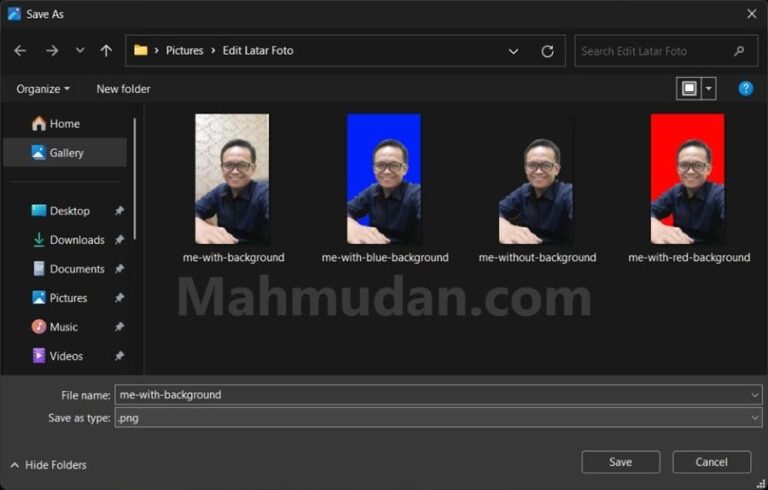
If you use Windows 11, You can change the photo background to red, blue or any color you want with just a few clicks. You can do this with an application that is provided for free, without internet connection and without login.
You already knew before How to edit photo backgrounds using PowerPoint which is done offline, now by following this short and easy tutorial, You will find out how to change the photo background in Windows 11 using Microsoft Photos or Photos.
Microsoft Photos is an application that allows you to do more with your photos and videos. The newly redesigned and re-engineered Photos app is intuitive, elegant, and weaves seamlessly into the Windows structure. You can see, arrange, edit and share photos from PC on Windows 11 and other devices.
The Photos application used in this tutorial is the Microsoft Photos version 2025.11030.27002.0, you can download it for free at Microsoft Store. Here is a simple and easy guide to change the photo background using Microsoft Photo.
How to Change Photo Background using Photos on Windows 11
List of contents:
Follow these steps to change the photo background in Windows 11 use Microsoft Photos.
Total Time: 5 minutes
Step 1: Open Photos
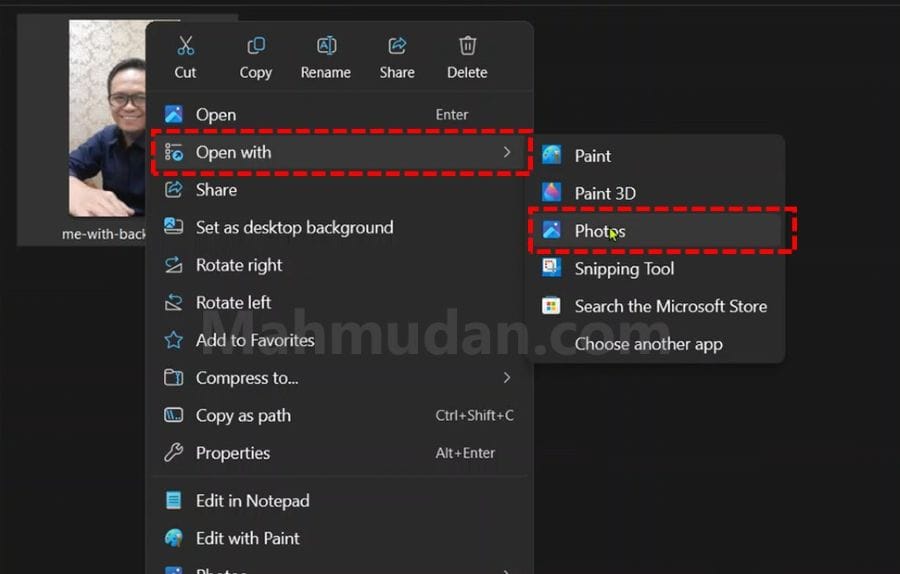
Right click on the photo then select Open with Then select Photos
Step 2: Editing photo
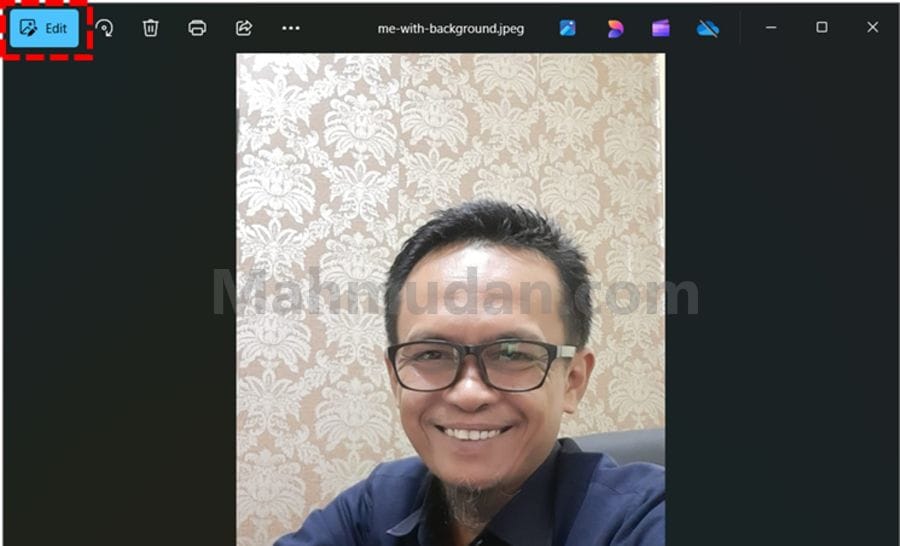
After the photo is opened with the Photos application, click the button Edit which is in the top left corner of the application
Step 3: Select the Background tool
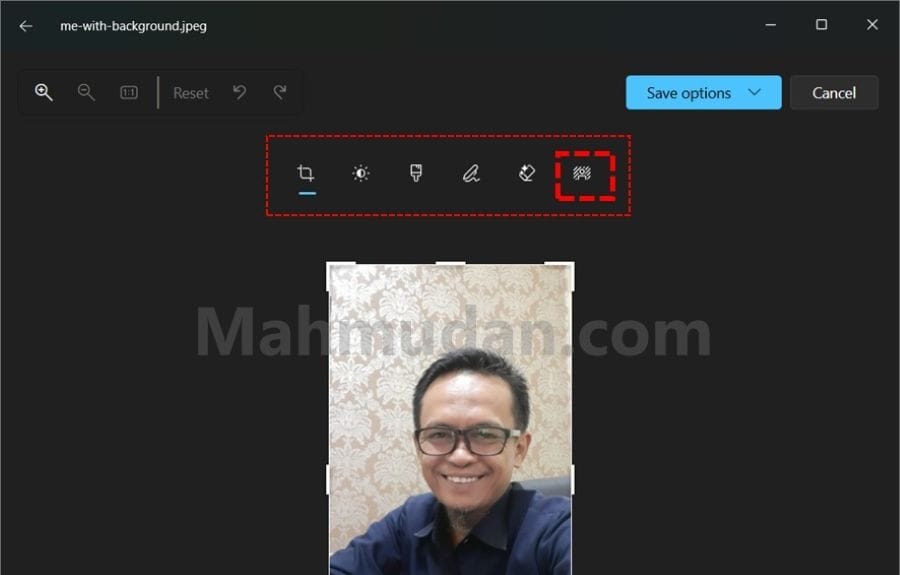
After you select the Edit menu, You'll see 6 tools you can choose to edit photos. Select a tool Background which is in the far right position.
Step 4: Change Photo Background
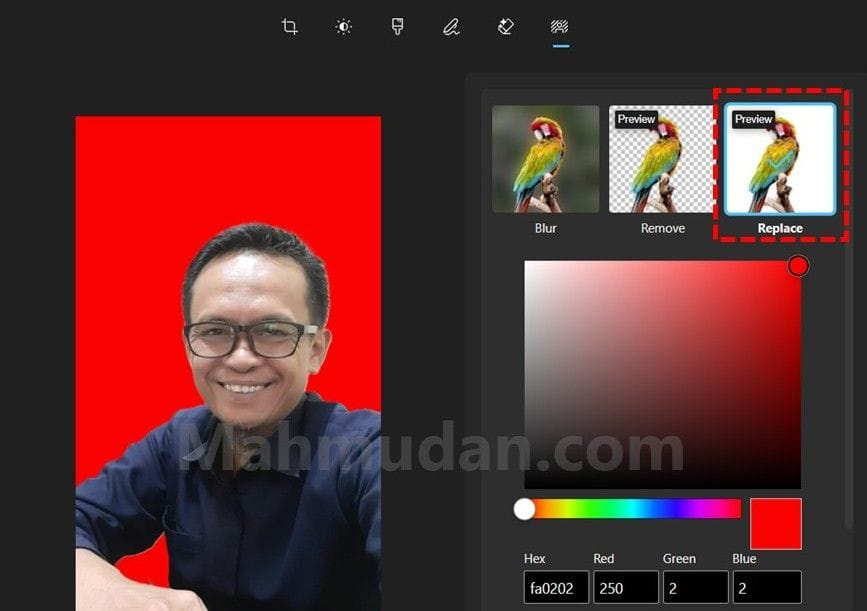
In the tool view Background, You can see three options that you can apply to the photo background, among others Blur, Remove or Replace. Choose Replace then select a color palette to replace the photo background with the color you want, You can choose red, blue or other colors by changing the position of the color marker.
Step 5: Save Photo
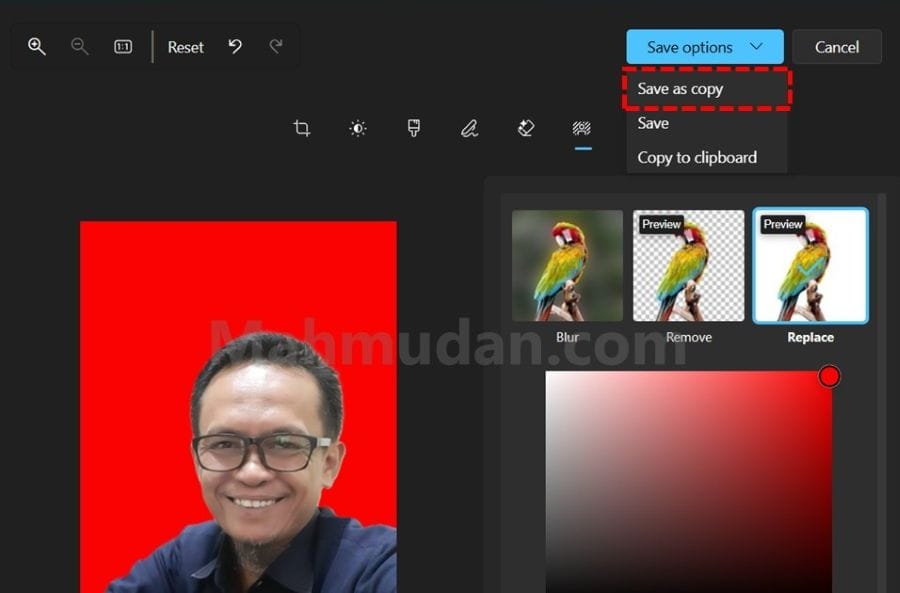
On the menu Save options, You can choose one of three save options. Save, This will replace the original photo with the changes you made. Save as copy to save as a copy, This option is recommended so that your original photo is not overwritten. Then there is the choice Copy to clipboard which you can paste in other applications for example PowerPoint via buttons Ctrl + v.
Results
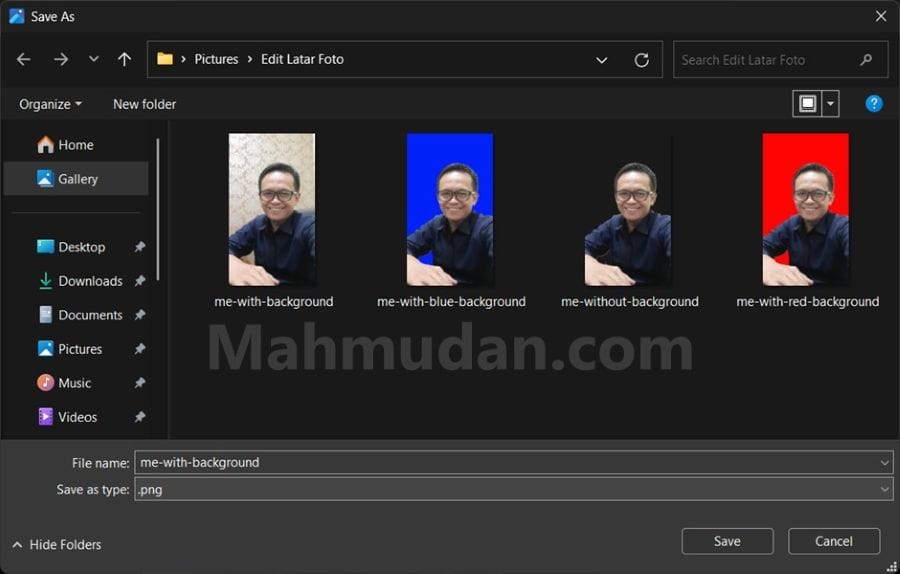
As you can see, I have replaced the original photo background with a red background, blue and no background.
Nowadays editing photos is no longer a difficult job, With current technological developments, you can edit photos with various tools that are easy to find, both used online and offline. One way to edit photo backgrounds is to use Microsoft Photo on Windows 11.
That's how to change the photo background in Windows 11 using the Microsoft Photos application. After knowing this short guide to changing photo backgrounds easily, You no longer need to upload your photos to online applications or use other applications that may be complicated to use.
good luck, Hope it is useful.