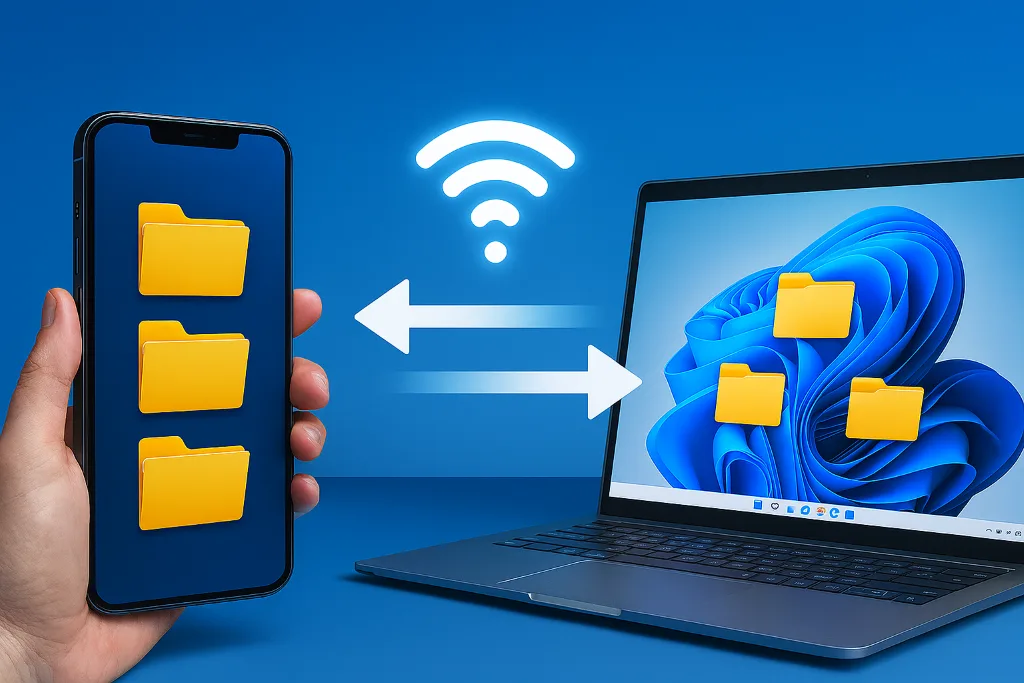
You can transfer data from PC to cellphone without cables via Folder Sharing di Windows. This article will show you the most effective and efficient methods, doesn't take up space, Excellent transfer speed and proven success.
Different from How to transfer data from cellphone to PC via WiFi which uses the FTP protocol (File Transfer Protocol), This method of transferring data from PC to cellphone without cables uses the SMB protocol (Server Message Block). SMB protocol is known for better security.
This method of transferring data from PC to cellphone without cables requires an applicationfile explorer which can access the sharing folder on your cellphone. So you can move files quickly, easy and safe without data cables with the Copy-Paste feature provided by file explorer.
List of contents
Steps to Transfer Data from PC/Laptop to HP
To be able to transfer data from PC to cellphone, Make sure both your HP and PC/Laptop devices are connected to the same network. If different networks, You cannot access the sharing folder so you cannot transfer data.
If you don't have a WiFi device or are on a public WiFi network, You can use a Wi-Fi hotspot on your cellphone with the following steps:
- Activate hotspot on your cellphone via Settings > Network & internet > Hotspot & tethering > Hotspot Wi-Fi.
- Connect your laptop to the Wi-Fi network created by your cellphone, just like when you connect to a regular Wi-Fi network, by entering a password if required.
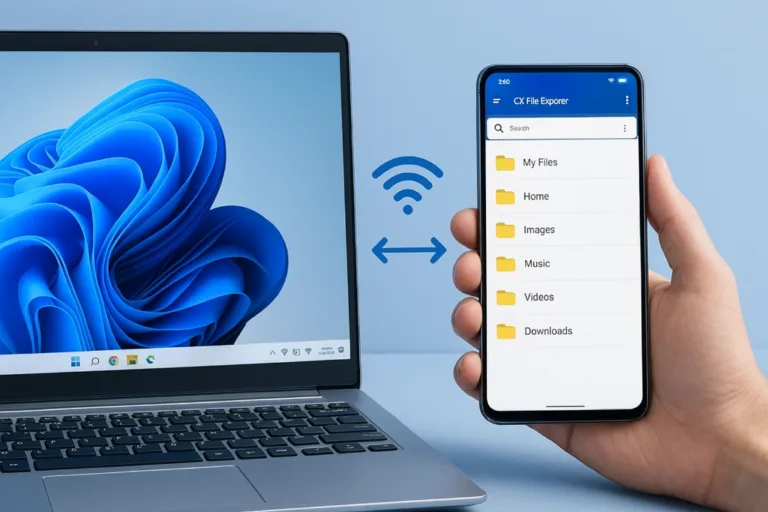
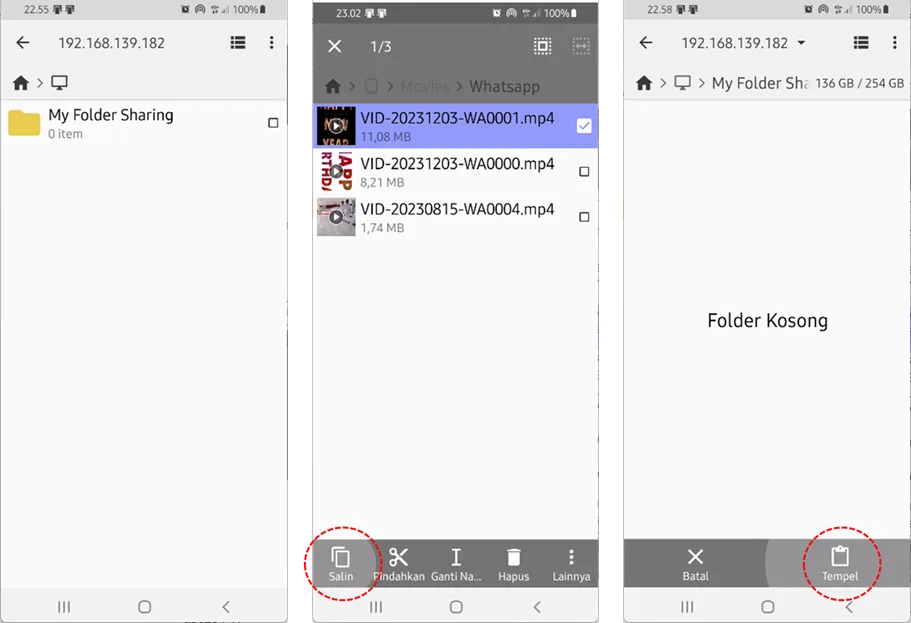
After the cellphone and PC are connected to the same network or to the HP Hotspot, Then you can transfer data from PC to cellphone without cables by accessing the sharing folder on the PC from the cellphone device. This way you can copy or move data in any way Copy-Paste using the application Cx File Explorer.
This guide consists of two main stages. First, steps performed on a PC or laptop. Second, steps performed on an Android phone.
Level 1: Steps on PC/Laptop
To be able to access folders on your PC/Laptop, You need to enable the option Network Discovery And Folder Sharing on a Windows computer. Follow these steps to enable it:
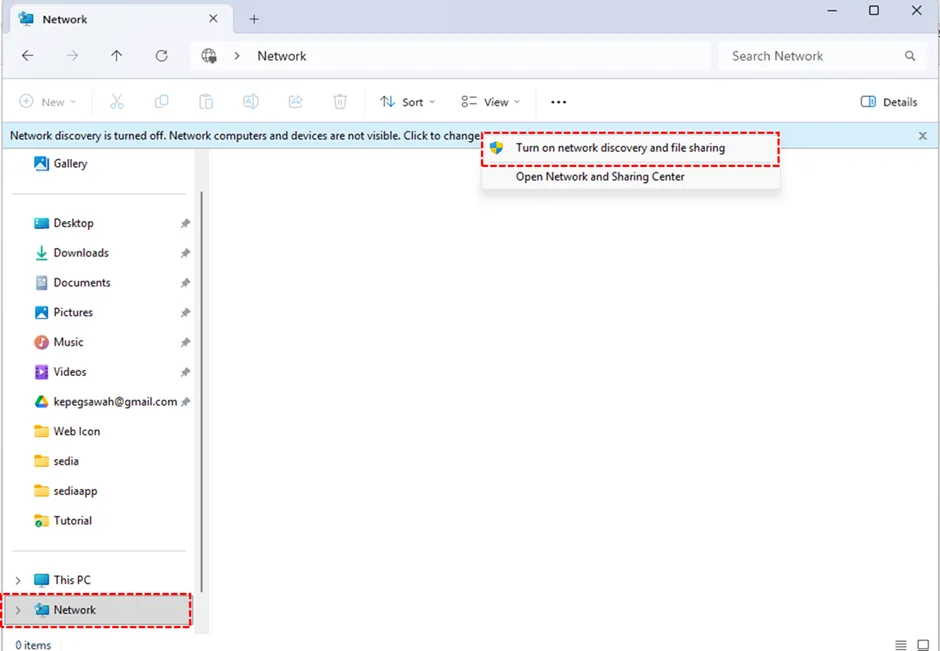
- Open Windows Explorer then select Network. If you see the notification “ Network discovery is turned off….”click on the notification then click Turn on network discovery and file sharing
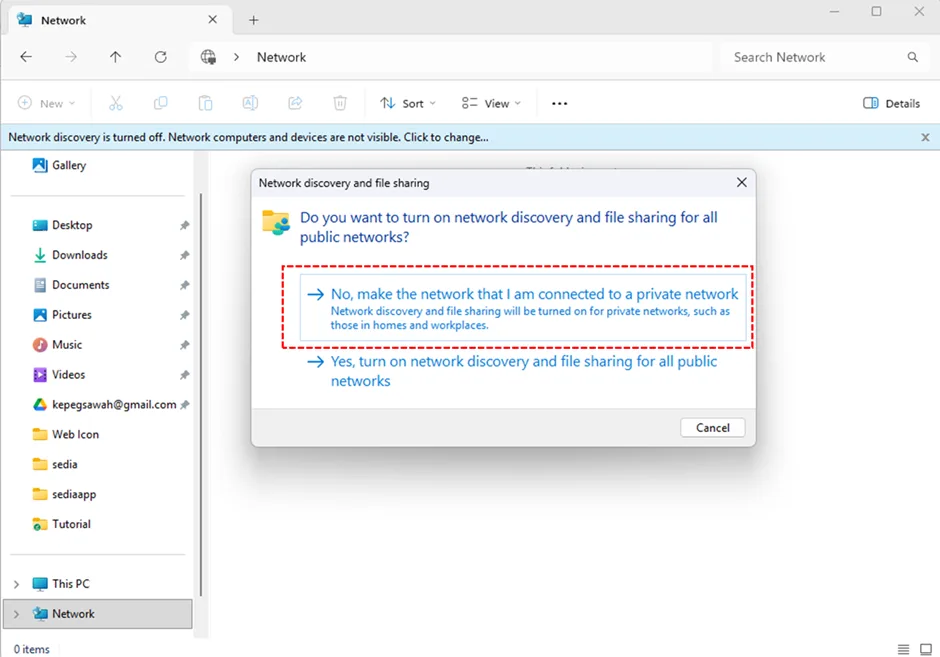
- In the dialog box Network discovery and file sharing, choose private network so that the computer can be found on the network.
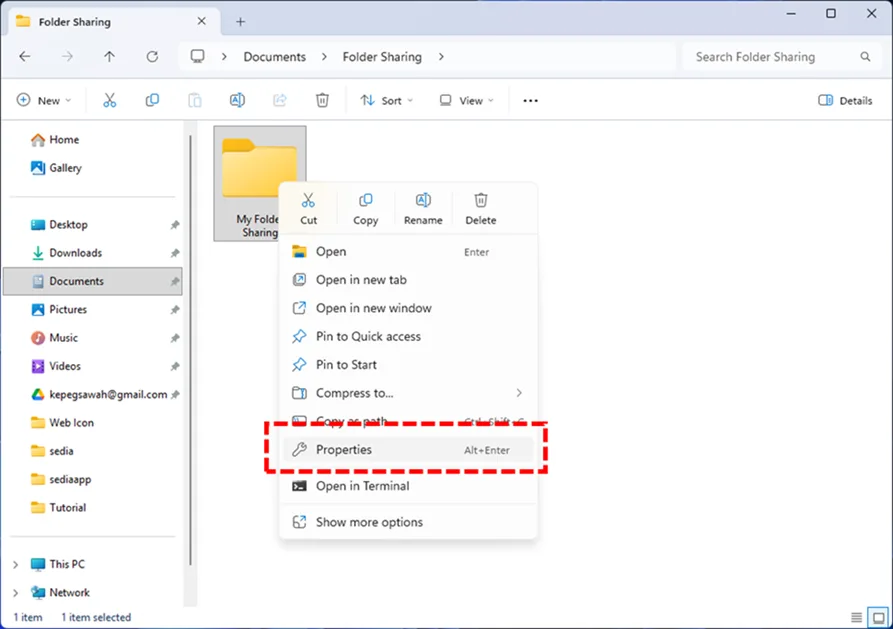
- Next, activate Folder Sharing. You can create a new folder or use an existing folder, in this example we create a new folder with the name My Folder Sharing. Right click on the folder then select it Properties
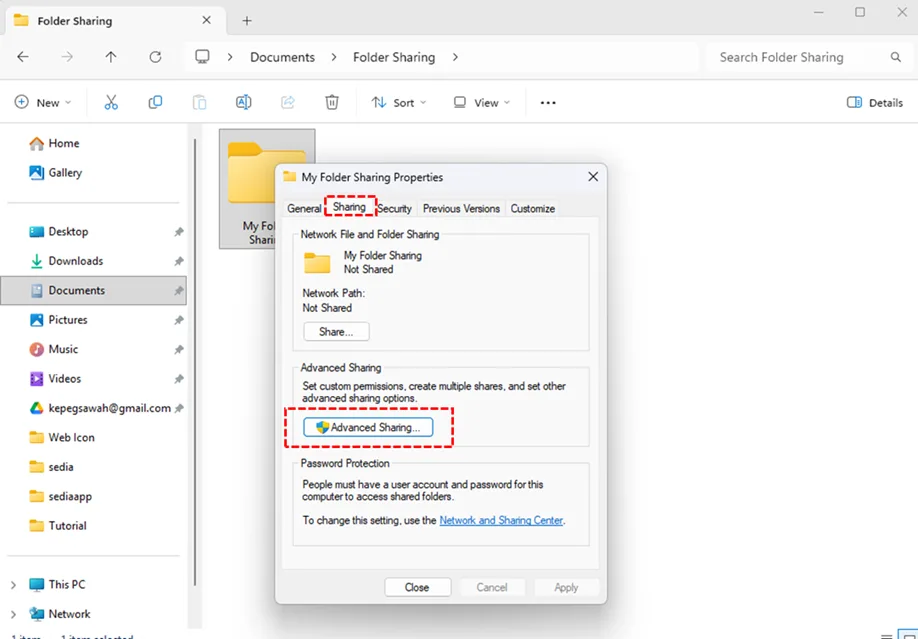
- On Folder Properties, click tab Sharing then click Advanced Sharing
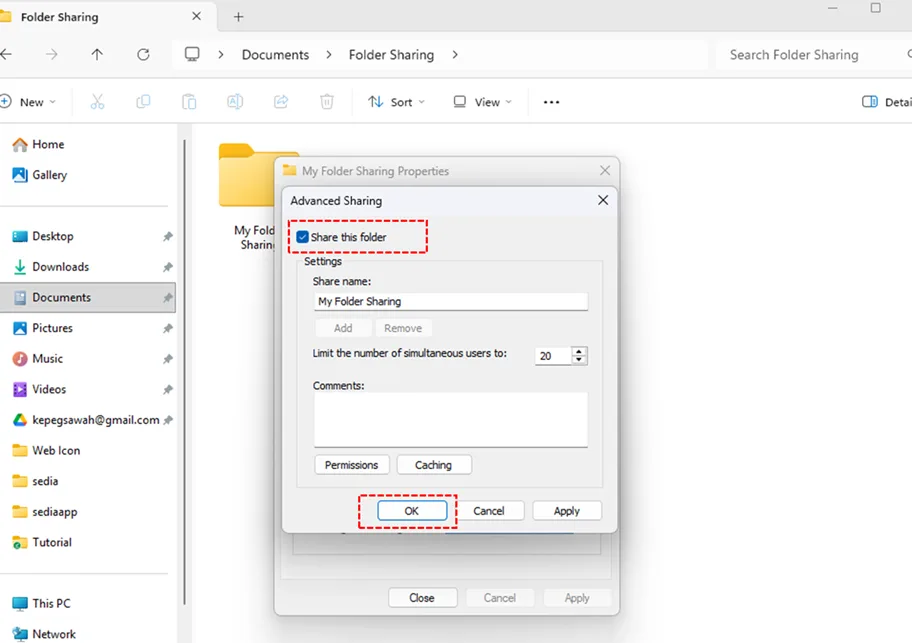
- On the window Advanced Sharing, check option Share this folder then click OK, then close the Folder Properties window
Level 2: Steps on an Android cellphone
After completing the steps in the first level on PC/Laptop, Continue the following steps on your cellphone/tablet device:
- Download and install application Cx File Explorer from Google Play Store.
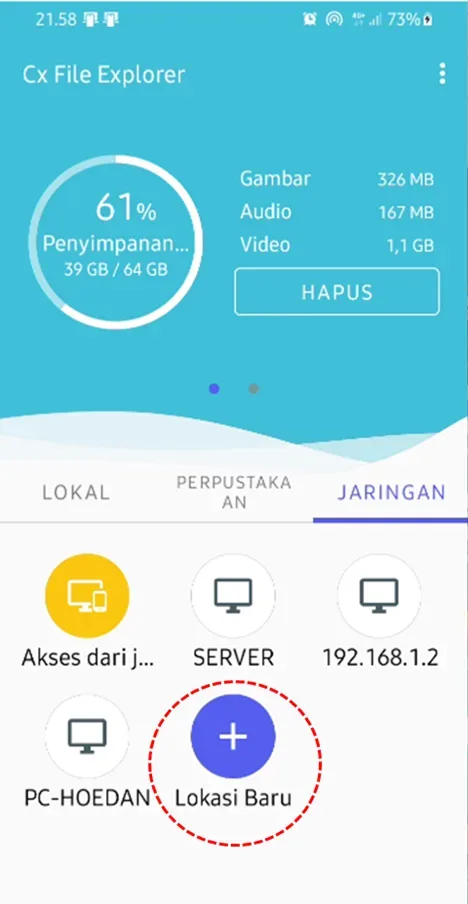
- Open the Cx File Explorer application, then select the Network tab, Then select New Location
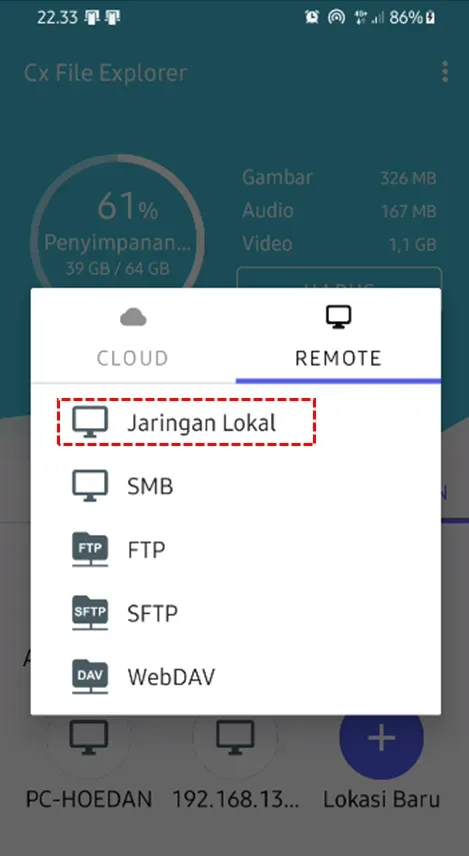
- Choose Remote then select Local Network
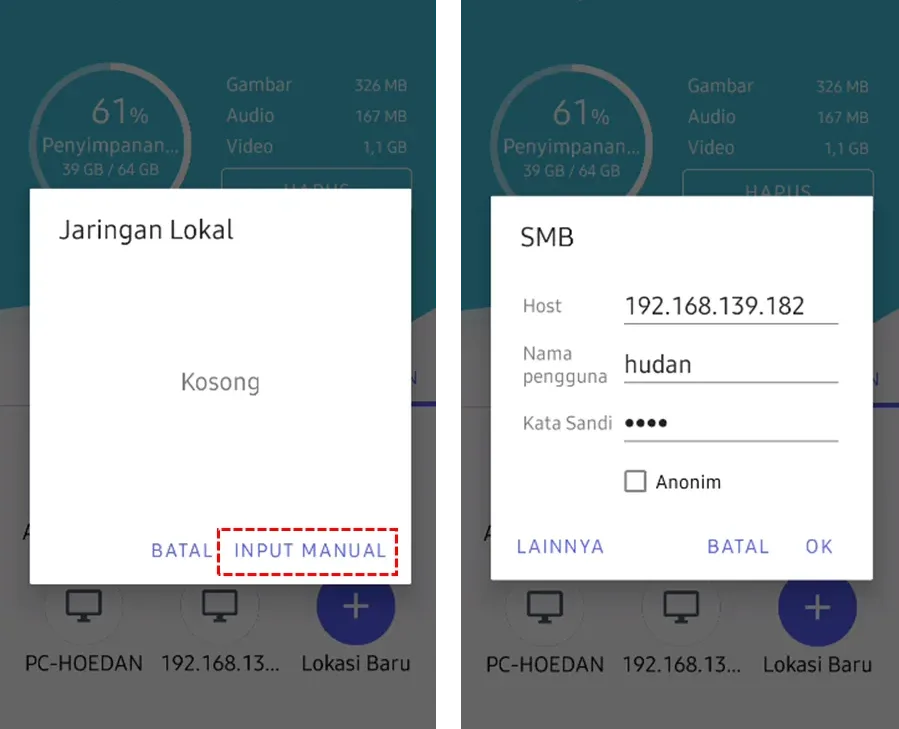
- Select your computer name, then enter the username and password that you use to log in to your PC or Laptop. If your PC or Laptop cannot be found, choose Input Manual, then type the IP address of the PC/Laptop-how to find PC/Laptop IP address at the bottom of the article.
- After finding the Sharing Folder that you created in the first stage, Then you can transfer data from PC to cellphone without cables Copy-Paste
How to Find a Windows Computer IP Address
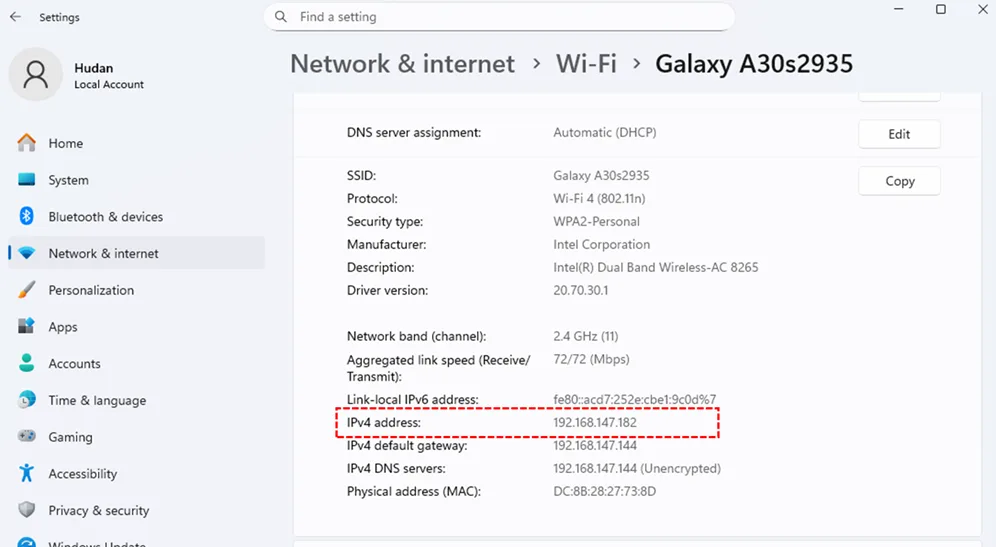
To find your PC/Laptop IP address, Do the following steps:
- open Settings > Network & Internet > Wi-Fi, then select the name of the Hotspot connected to your PC/Laptop
- scroll down until you find IPv4 address: 192.168.xxx.xxx
Conclusion
By following the steps above, You can easily transfer data from PC to cellphone without data cables or complicated applications. This method uses the well-known practical SMB protocol, fast, and safe as long as the device is on one Wi-Fi network with no file size limits.
With this method, You can create a new file, delete and edit files directly as long as an application that can open files is installed on your cellphone device.