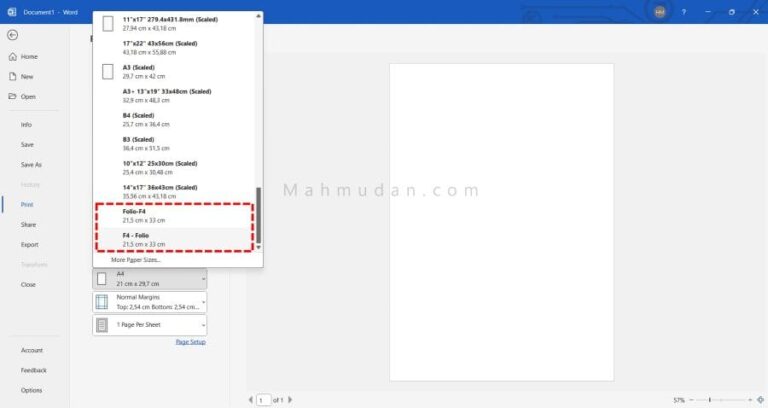
This comprehensive guide explains how to add F4/Folio paper sizes (appears in Word and Excel) on an HP printer, Epson, and Canon as well as on Windows Print Server so it can be used for all other printers and the results are permanent.
If you create a document Office (Word, Excel, PowerPoint), then want to print it using a paper size that is not available in the options, There are two possible options that you can do, namely choosing the paper size to use Custom, or add a new paper size on printer preferences so it can be displayed in the application Word or Excel.
Adding the F4 paper size and saving it in the printer preferences will be very helpful when it comes to printing, This is because the newly created paper size is stored permanently on Print Server as long as it is not deleted, and can be used in all applications that have a print option.
There are quite a lot of printer brands on the market today, Each printer brand has different preferences. So you can add F4 paper size to printer preferences, make sure driver the printer you are using is installed. Apart from going through printer preferences, You can also add F4/Folio paper size using Print Server.
List of contents
How to Add F4 Paper Size
Below will explain how to add Folio/F4 paper sizes or other sizes using Printer Preferences And Print Server. You can choose one of the two ways.
To be able to add paper sizes using Printer Preferences, The first step you need to do is open Printer Preferences. Likewise, if you want to increase the Folio/F4 paper size using the Print Server, The first step you have to do is open the Print Server.
Using Printer Preferences
There are two ways you can open printer preferences, the first through Settings di Windows 11, and the second through the Word application, Excel or PowerPoint. You can choose one of the two ways.
Open Printer Preferences in Settings
Steps to open printer preferences via Settings as follows:
- Open Settings, choose Bluetooth & devices, then select Printers & scanners
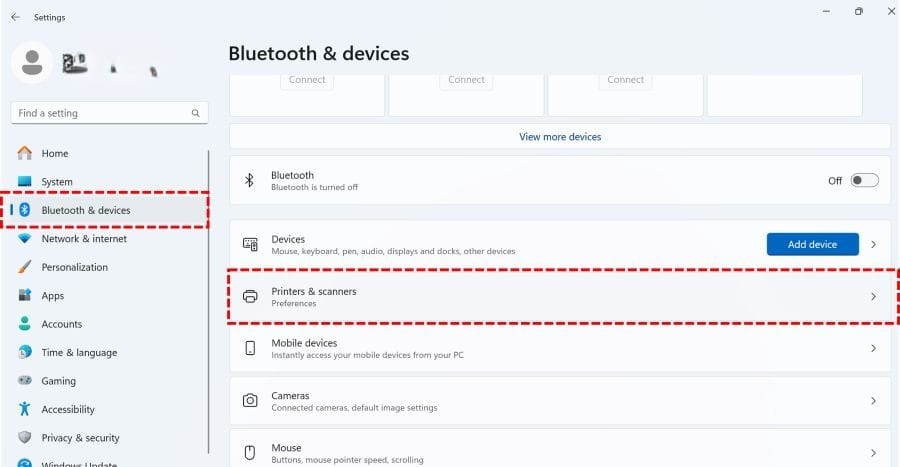
- On Printers & scanners, Select the name or brand of printer for which you want to open preferences, Then select Printer preferences
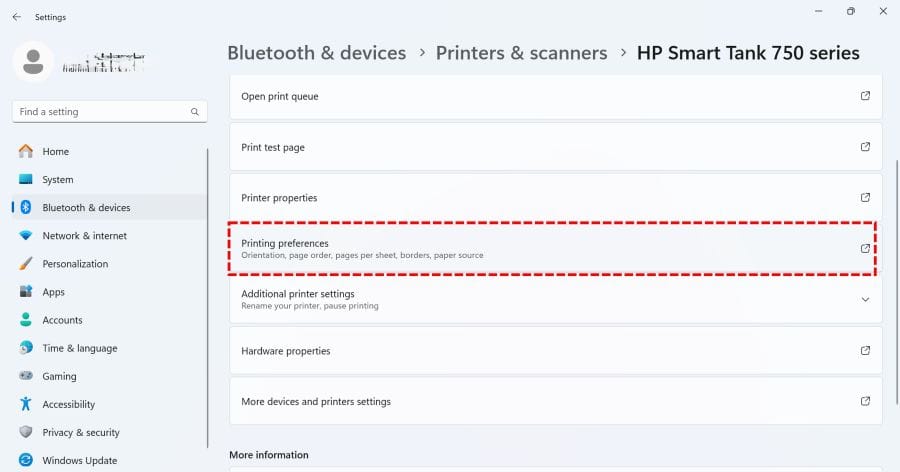
Open Printer Preferences in Word or Excel
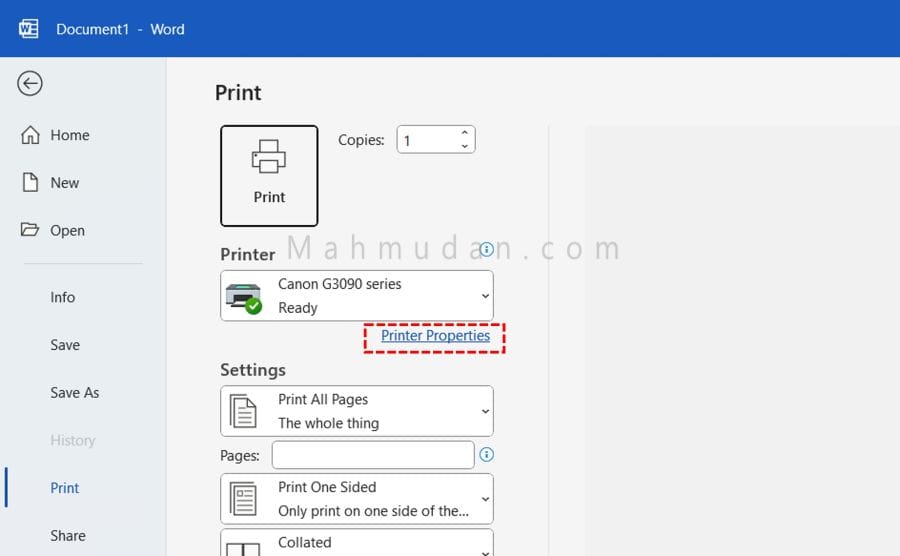
The steps to open printer preferences via the Word or Excel application are quite simple and fast. In the Word or Excel application, press Ctrl + P Then select Printer Properties.
Add F4 or Folio Paper Size
After opening printer preferences. You can add size F4 (Folio) on the printer (according to brand) by doing the following steps below:
For HP Printers
Perform the following steps in sequence to increase the paper size to F4 or Folio printer HP. The sequence of steps is shown in one image as follows:
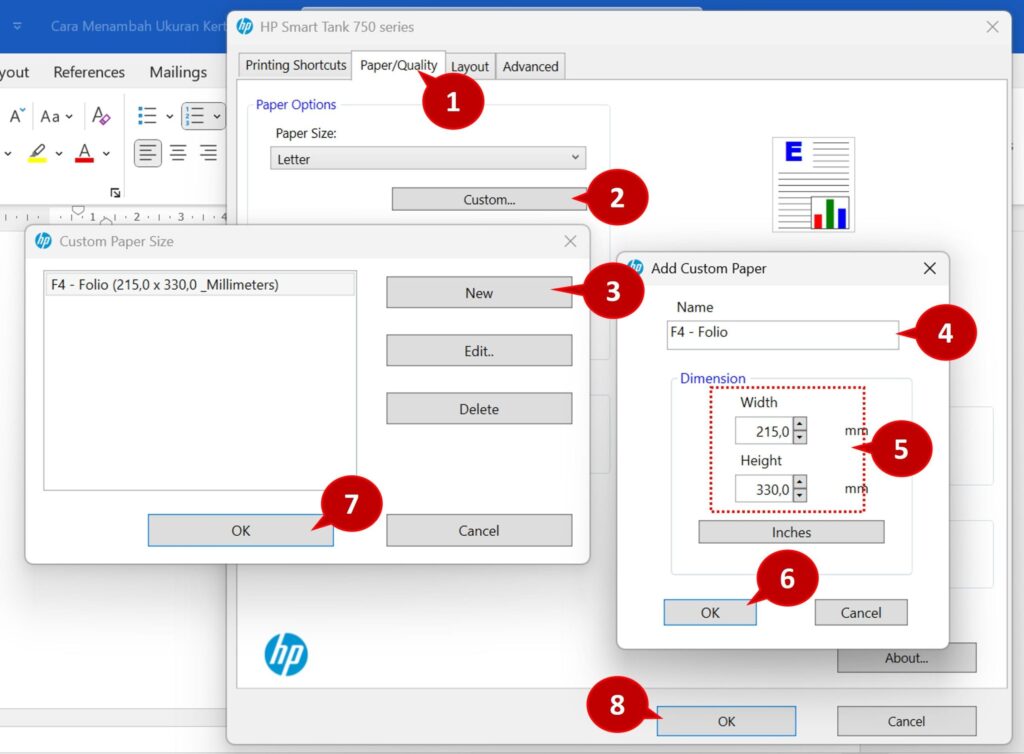
- In HP printer preferences, Select a tab Paper/Quality
- In part Paper Size:, click Custom…
- On Custom Paper Size, click New
- On Add Custom Paper, in the field Name, Type a name for the size you want to create, example: F4 – Folio
- In the Dimension, The input size for F4 or Folio paper is Width = 215mm and Height = 330mm.
- Click the button OK To keep the size of the newly created paper
- Click OK to close the display Custom Paper Size
- Click OK again to close the printer preferences view
For EPSON Printers
Perform the following steps in sequence to add F4 or Folio paper size to printer EPSON, shown in one image as follows:
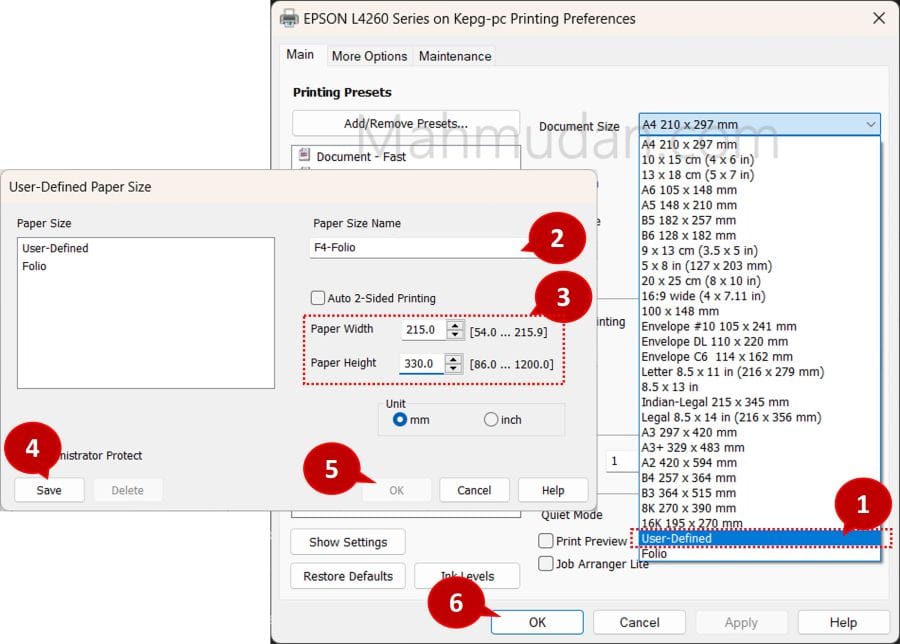
- In EPSON printer preferences, on tabs Main, on options Document Size, choose User-Defined
- On display User-Defined Paper Size, type name for size, example: F4-Folio.
- Enter the paper size you want to add, F4 or folio measurements are Width = 215mm and Height = 330mm.
- Click the button Save to save
- Click the button OK to close the display User-Defined Paper Size
- Click OK to close the printer preferences display
For CANON Printers
Based on our experience, we couldn't find an option to add or save a new paper size in preferences printer Canon. However, on preferences printer Canon there has been a paper measure with a name “Foolscap/F4/Oficio2” with dimensions 215,9×330,2mm, exactly the same as Folio/F4 paper size.
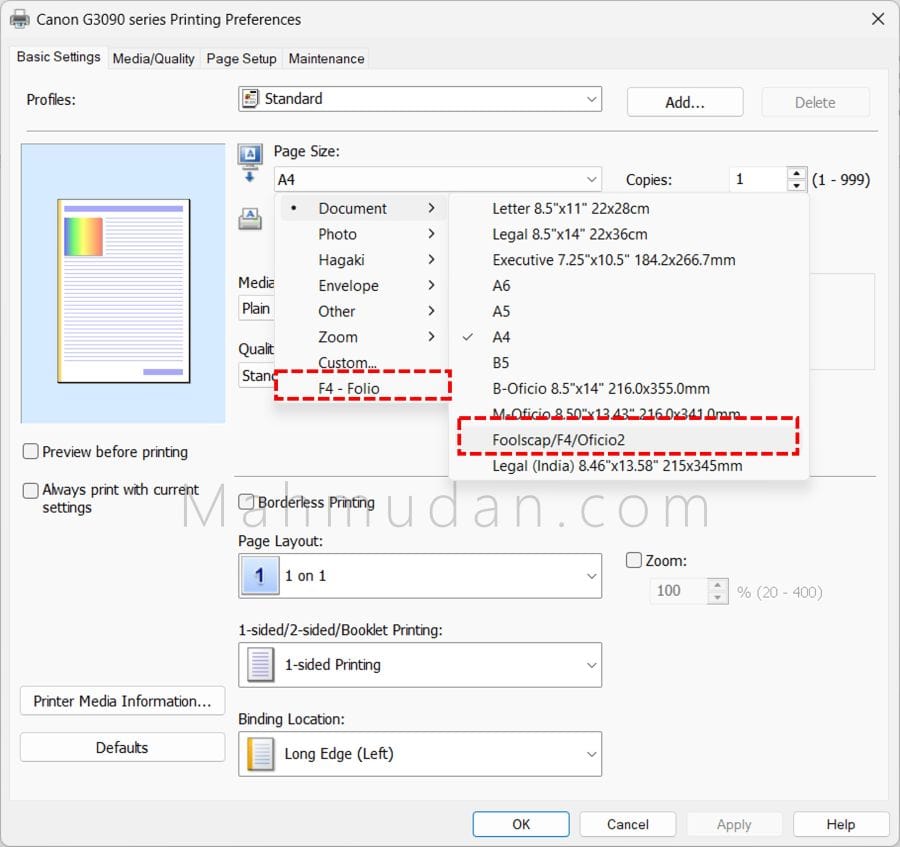
Besides that, on preferences printer Canon There is also a paper size called F4 – Folio which we previously created using another brand of printer preferences.
So, What if your printer preferences don't have a paper size with a name “Foolscap/F4/Oficio2“? or no F4/Folio paper size created with other printer preferences? You can solve this problem using Windows Print Server.
On Windows Print Server, You can add any paper size you want including F4 paper or other sizes.
Using Print Server
Using a Print Server should be a last resort, select this option if you cannot find the option to add F4 paper size or another size in the preferences of the printer you are using.
Opening the Print Server requires access rights Administrator because wrong actions can interfere with the printer's preferences, so you need to be careful and precise. Adding a paper size that the printer does not support may result in printing errors in the document.
The first step to add the F4-Folio paper size using the Print Server is to open the Print Server.
Open Print Server
To open the Print Server, open Settings, choose Bluetooth & devices, then select Printers & scanners. Scroll down and select it Print server properties
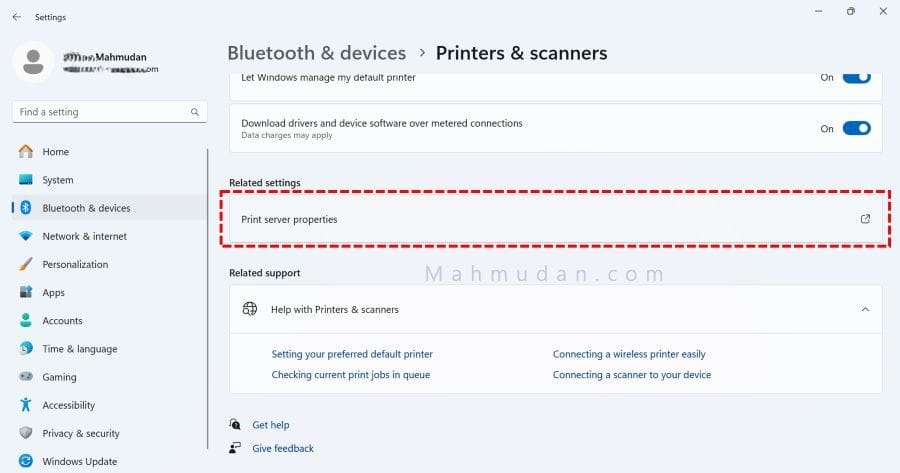
Add Paper Size F4 / Folio
After opening the Print Server, You can add F4 or Folio paper size on the Print Server by performing the following steps below in sequence . Shown in one image as follows:
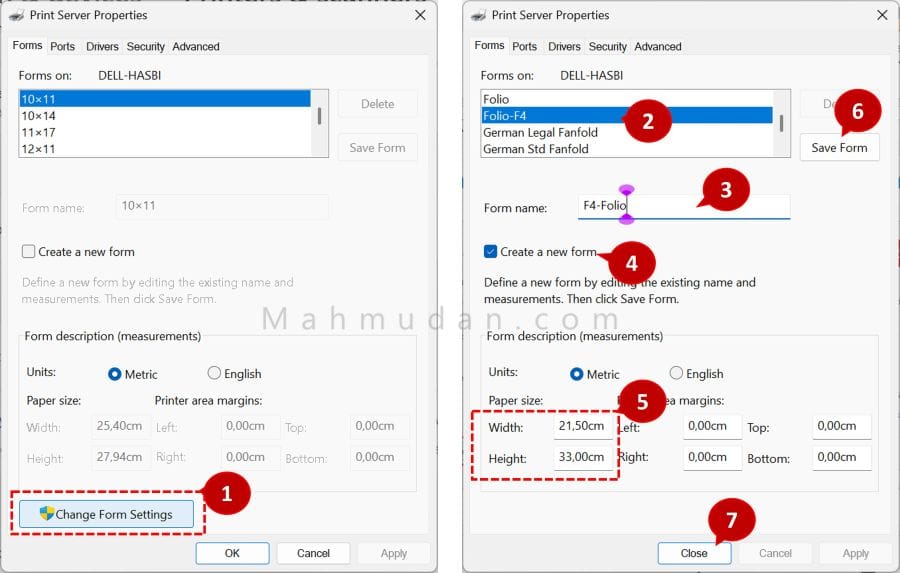
- Click Change Form Settings, to open the add/change/delete paper size options (The system may ask you to enter the Administrator password.)
- In the Forms on section: , choose one size, for example Legal or any size.
- In the field Form name:, Type a name for the size you want to create. Example: Folio-F4
- Check the options Create a new form, This must be done so as not to change the existing size.
- Enter the paper size you want to make, F4 or folio measurements are Width = 215mm and Height = 330mm.
- Click the button Save Form to save the new paper size.
- Click Close to close the Print Server display
Conclusion
Adding F4/Folio paper size or other paper sizes can be done in two ways, namely using Printer Preferences And Print Server. The best way to add F4 paper size is to use Printer Preferences because the ability to print with various paper sizes is a capability of the printer itself which can be managed through printer preferences.
If there is no option to add a new paper size in the printer preferences, Print Server on Windows is a practical solution that can be used on any printer.
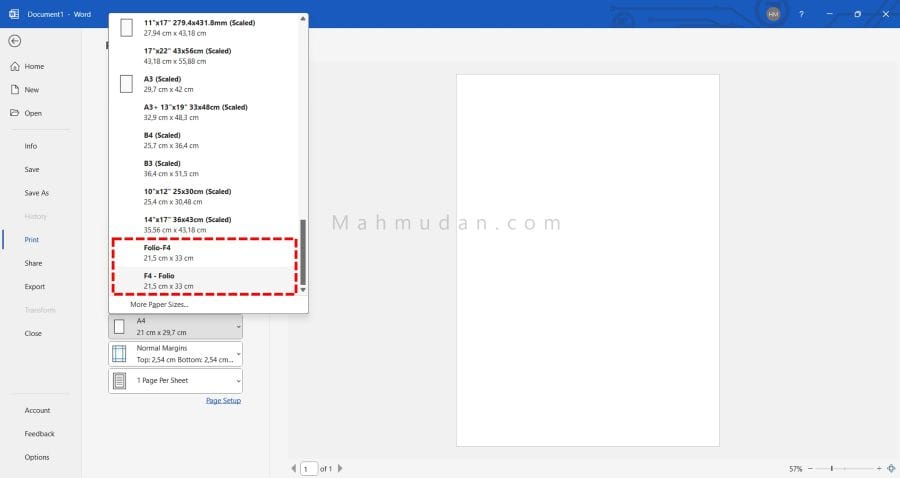
After successfully adding the F4/Folio paper size using one of the methods mentioned above, Now the F4/Folio paper size is available in the printing paper options in the Word application, Excel or an application that supports other print options.
Hope it is useful