This article briefly explains how to add or insert images into Word, to Excel or to PowerPoint.
When you want create a letterhead in Word complete with the logo of the company or agency where you work, You need to add a logo image to the letterhead. How to add images to Word?
Inserting images or photos into the Word application, Excel or PowerPoint is quite easy, You can do this in one of two ways which will be explained below. This method of inserting images into Office applications can be done for all the latest Office products as well as old Office products.
List of contents
Inserting Pictures into Word via the Insert Menu
How to insert images into Word, PowerPoint or Excel with the Insert menu
Total Time: 1 minute
Klik Insert Picture

Open the Word application, Excel or PowerPoint, then select tabs Insert then click Picture
Select Image

Select the image you want to insert then click the button Insert, or double click on the image you want to insert.
Inserting Word Images by Copy – Paste
Apart from using the menu Insert Picture, You can also insert images into Word, PowerPoint or Excel by copy-pasting, here are the steps:
Copy Image

Open the folder where the image you want to insert is stored, then copy the image by pressing the button CTRL + C on the keyboard. You can also copy by right clicking on the image and selecting Copy
Paste Image

Open the Word application, PowerPoint or Excel, then paste the image by clicking the button Paste, or by right click then select Paste.
Finished
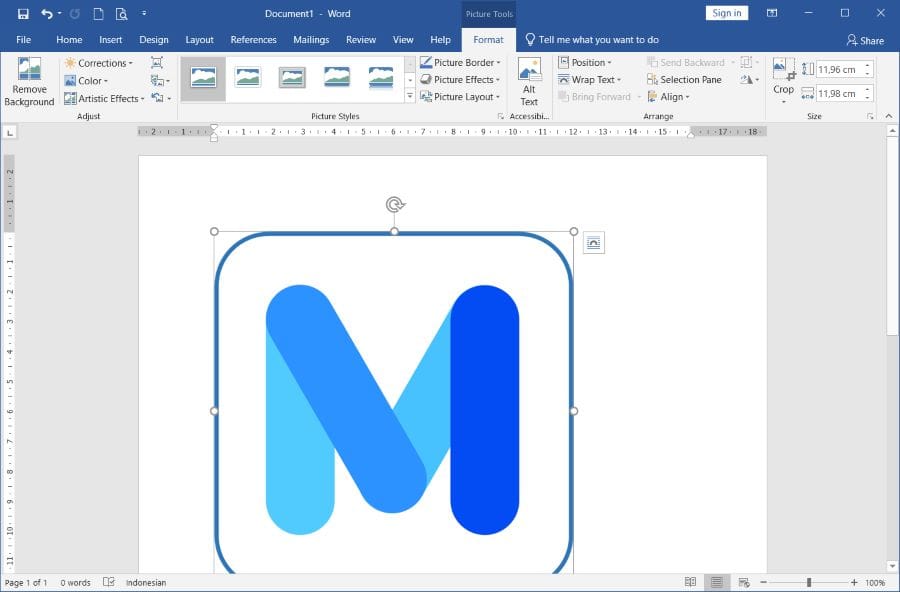
By using one of the methods mentioned above, The image should have been successfully entered into the document like the image above.
After you insert the image into Word, the image position is exactly where the cursor is at the original size of the image. If your goal is to include an image for your letterhead, You may need to change the size and position of images in Word to suit the layout you want.
If you want to insert a signature image into Word, you might want to too remove image background or flip the image.
If you are a Windows user 11, you can easily copy text from image.
That's how to insert a picture into Word, Hope it is useful. Also watch the video tutorial at This YouTube channel.