This article will guide you step by step to create a simple Mail Merge in Word 2021 with data entered directly. Mail Merge is a feature in Microsoft Word that allows us to create bulk documents with different contents, for example an invitation letter, certificate, or address labels.
With Mail Merge, we don't need to reproduce documents and edit them one by one, Just prepare the data and Word will automatically combine them. Previously Mahmudan had shown how to create a Mail Merge in Word using data from Excel, but apart from that, we can also directly type recipient data in Word. This method is suitable if the number of recipients is not too large or the data is simple.
This article will discuss the steps to create a Simple Mail Merge in Word 2021 in a way that is easy to understand.
Steps to Create a Simple Mail Merge in Word 2021
List of contents
Step by step to create a simple Mail Merge in Word 2021 with data entered directly.
Total Time: 10 minutes
1. Prepare Main Documents
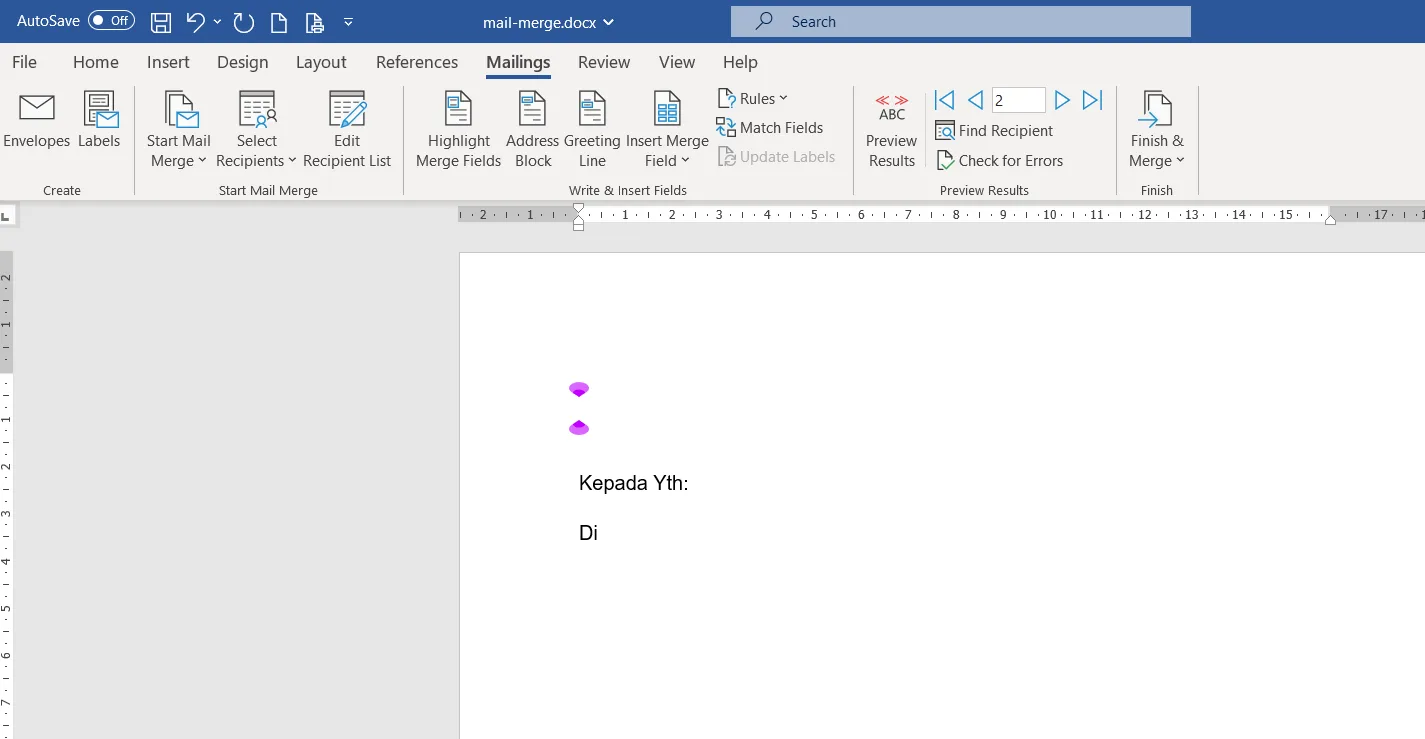
Open Microsoft Word 2021.
Create a template document, for example an invitation letter or notification.
Type the contents of the letter as usual, Leave a blank section for the data to be replaced (for example Name, Address).
2. Start Mail Merge
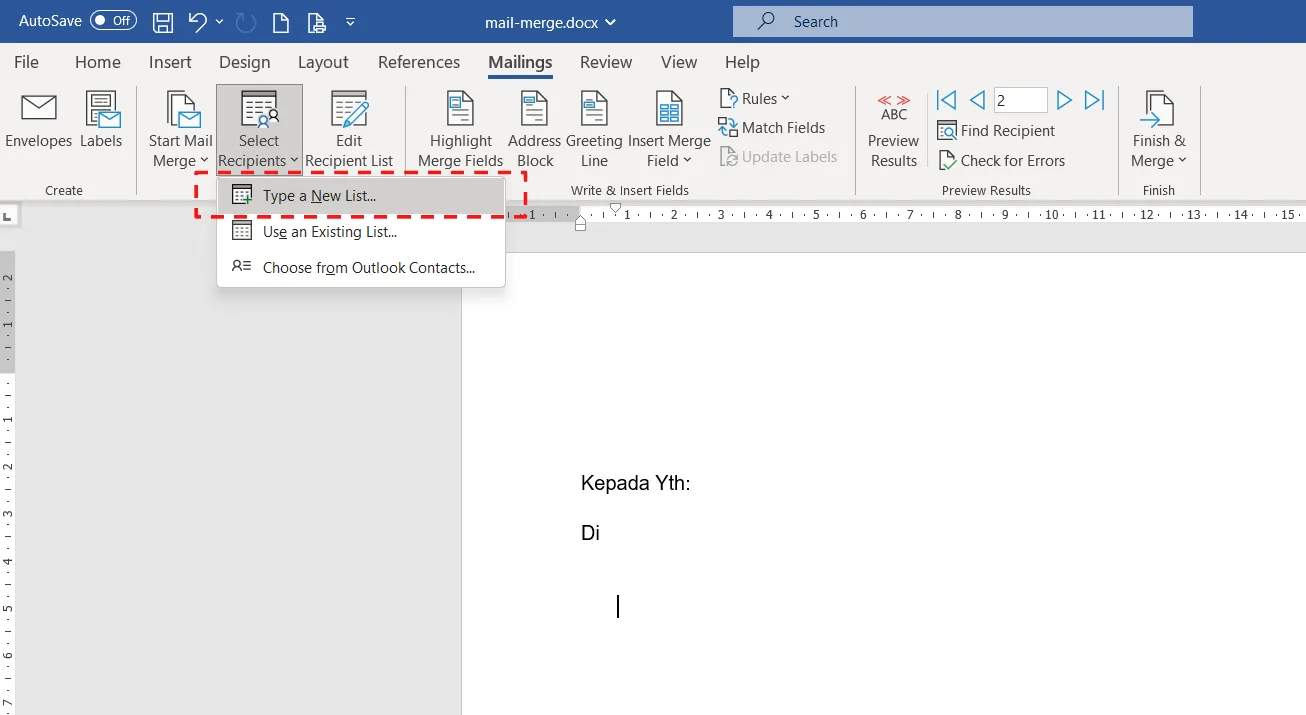
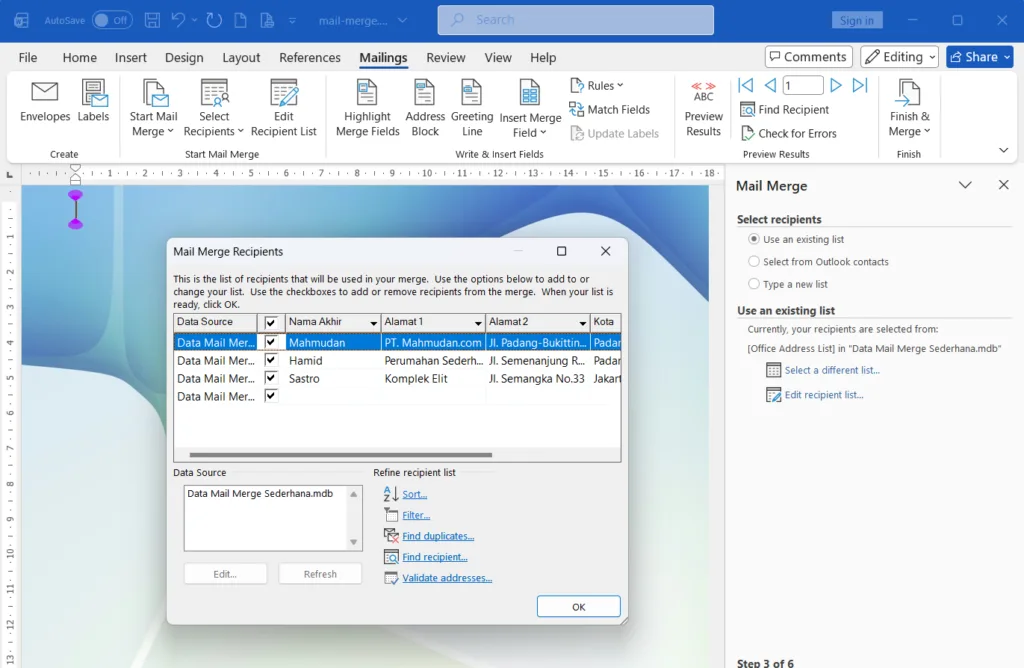
Click tab Mailings in the top menu.
Click Select Recipients → select Type a New List.
A window will appear New Address List.
3. Enter Recipient Data Directly in Word
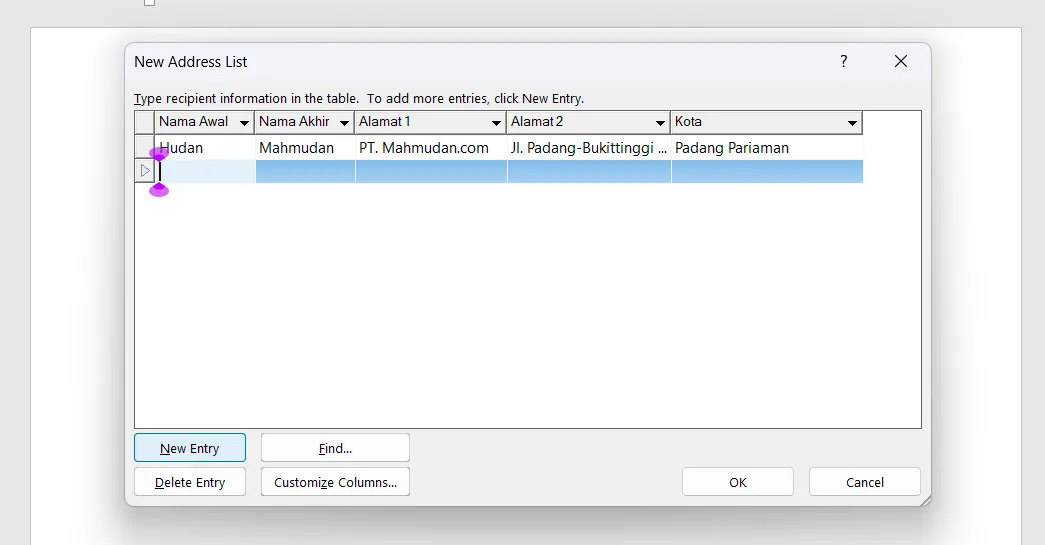
Fill in the recipient data directly in the table provided (for example Name, Address, Kota).
If the column does not match your requirements, click Customize Columns to add or delete columns.
After it finishes, click OK then save the recipient list (Word will save it as an .mdb file).
4. Insert Mail Merge Field
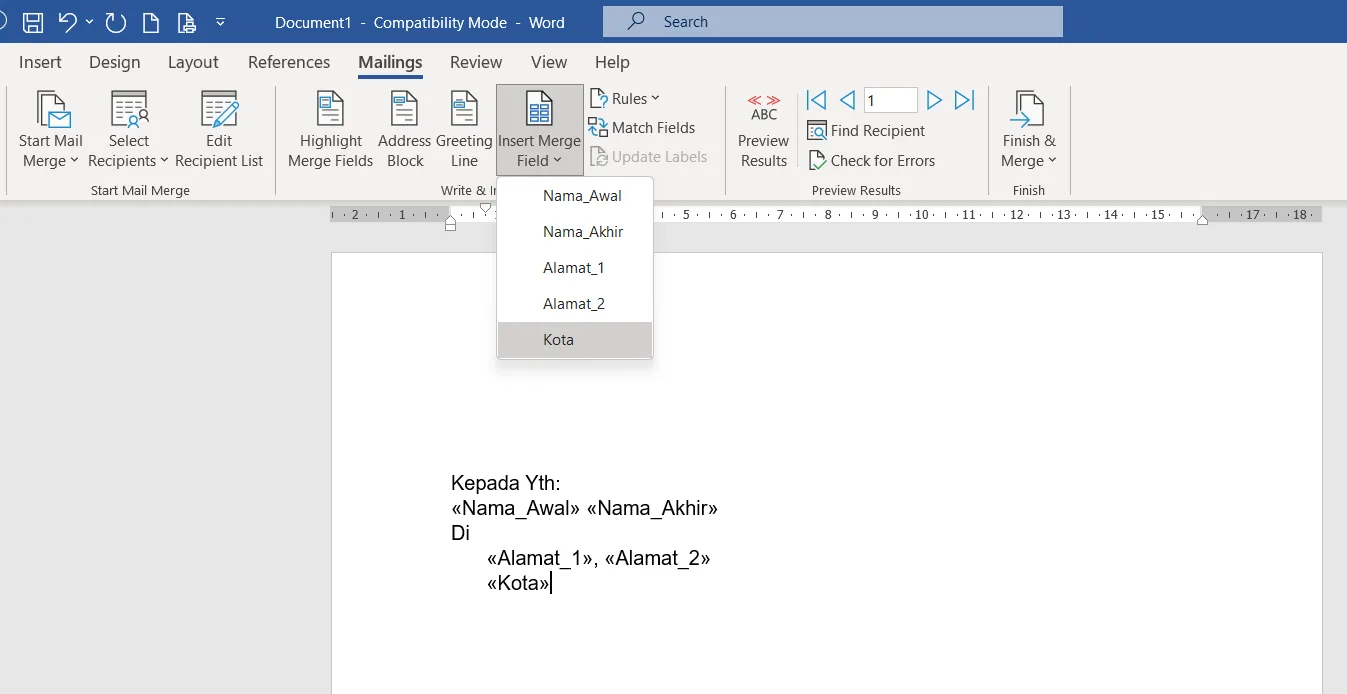
Place the cursor in the part of the document you want to autofill.
Click Insert Merge Field → select data column (for example Name, Address).
Repeat for all parts that need to be replaced.
5. See Preview Results
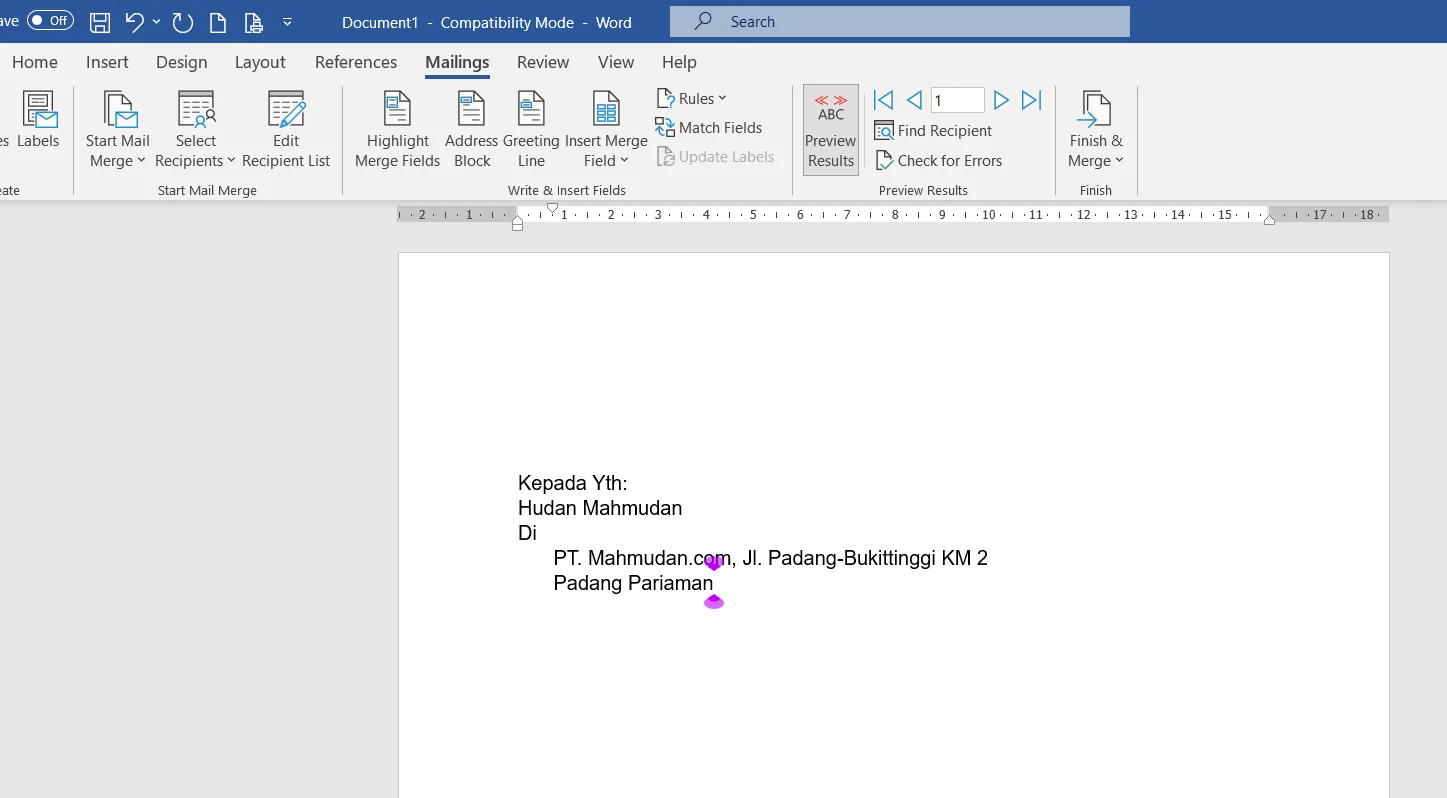
Click Preview Results to see how the document will appear with the original data.
Use the arrow keys to view each recipient.
6. Complete Mail Merge
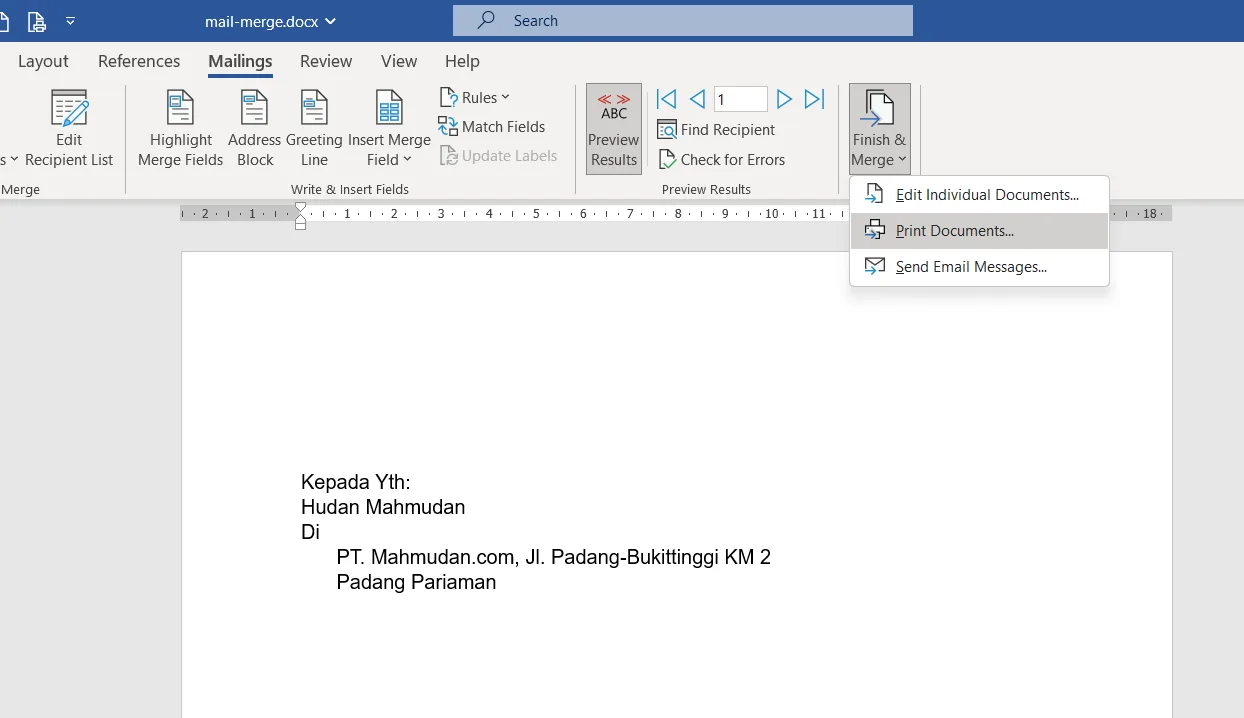
If it's appropriate, click Finish & Merge.
Choose Edit Individual Documents to create a new document containing all the data, or Print Documents if you want to print it directly.
Conclusion
Simple Mail Merge in Word 2021 can be made without using Excel. With features Type a New List, we can directly type the recipient data in Word. This method is more suitable as an introduction to Mail Merge or for simple needs, like writing a letter to just a few people. So, choose the method according to your needs: Mail Merge in Word uses data from Excel for big data, or direct input in Word for small data.