This article shows how to reinstall Windows 11 without a flash disk easily. Learn the steps to reset PC, preparation for success, as well as risks that need to be anticipated.
Reinstalling Windows 11 usually done using a USB flash disk. However, if you don't have it, don't worry—Windows 11 provides the option of direct reinstallation of the system without external media. By method Reset This PC, You can reinstall Windows 11 practically without additional devices, just follow the menu available on Settings.
List of contents
When is Reinstallation Needed?
Reinstalling Windows is usually required when:
- The system feels slow or experience frequently error.
- Happen system file damage due to malware or failed update.
- Want to do total cleaning to restore performance like new.
- Removed the old configuration and started with default settings.
Difference between Reinstall vs Reset This PC
To reinstall Windows-11 without a flash disk, There are two options that you can choose, namely Reinstall And Reset This PC, here are the differences:
Reinstall (via Windows Update)
- The main purpose: Repair the system without deleting data.
- User data: All files, application, and settings are maintained.
- file system: Redownloads damaged or missing Windows system files.
- Internet requirements: Of, because the files are taken from Microsoft servers.
- When to use: When the system experiences a minor error, system files are damaged, or update failed.
Reset this PC
- The main purpose: Returns Windows to its original state.
- User data: Can choose Keep my files or Remove everything.
- file system: Full reinstall from scratch (local or cloud).
- Internet requirements: Optional, depending on the method (Cloud download or Local reinstall).
- When to use: When you want to completely clean the system or performance has decreased seriously.
Preparation Before Reset
So that the process runs smoothly and safely, make the following preparations:
- Backup important data to an external drive or cloud like Google Drive or OneDrive
- Make sure electrical power is connected to the laptop/PC so that it doesn't die suddenly.
- Check BitLocker: if active, make sure you know the recovery key so that it is not locked after reset.
- Stable internet connection if you plan to use Cloud download.
- Sufficient storage space for the reinstallation process.
- Use administrator account to have full permission.
Possible Risks
Although this process is relatively safe, There are still risks that need to be considered:
- Loss of personal data if select option Remove everything.
- Missing applications and drivers, so it needs to be reinstalled manually.
- The process can fail if internet cut off moment Cloud download.
- Potential error booting if local system files have problems.
- Installation time may take longer depending on device specifications.
Steps to Reinstall Windows 11 No Flashdisk
Perform the following steps to reinstall Windows 11 without flash disk
Total Time: 1 hour
1. Enter the Menu Recovery
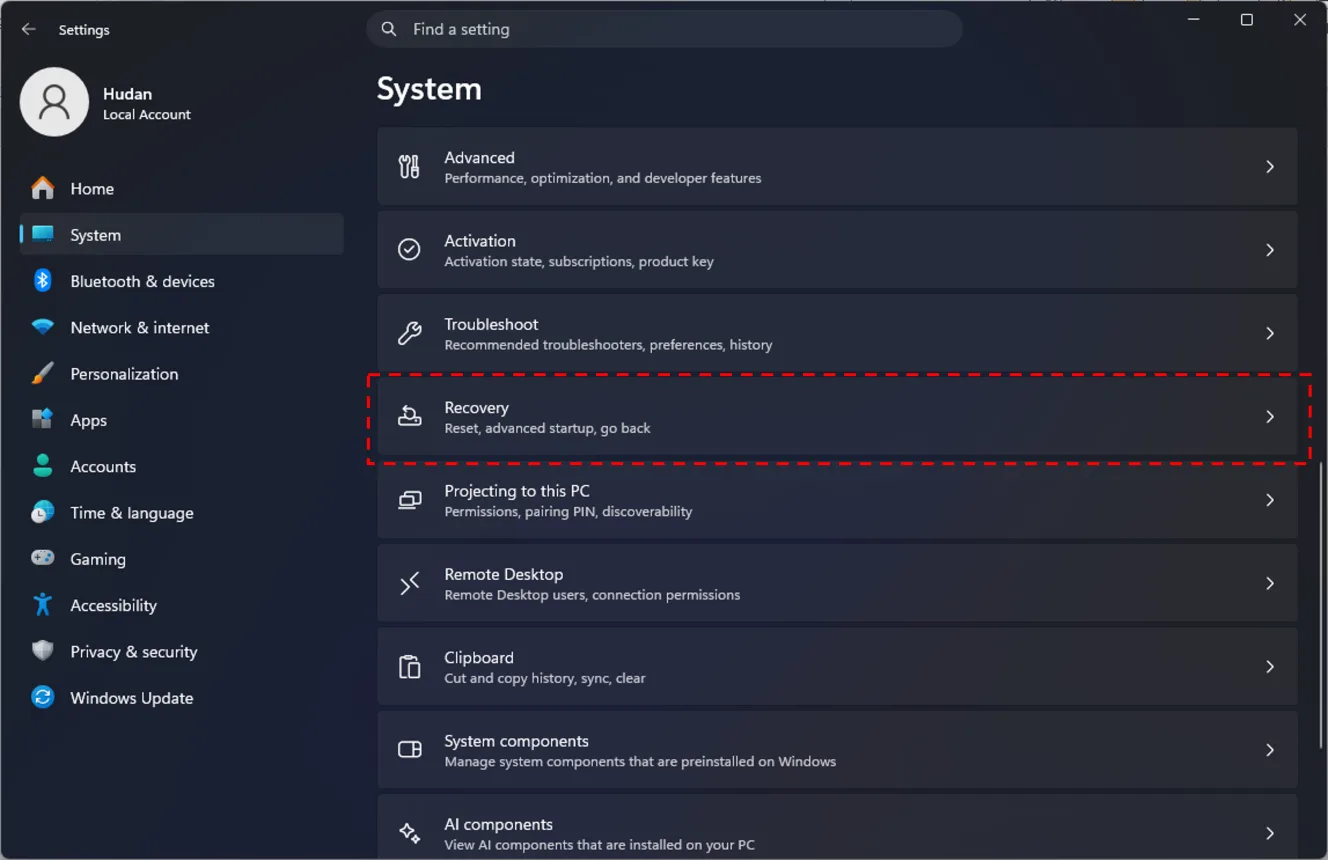
Open the menu Settings by pressing the button Windows + I on your keyboard. Once open, Select a tab System in the left panel, then scroll down and click Recovery.
2. Select Reset PC Option
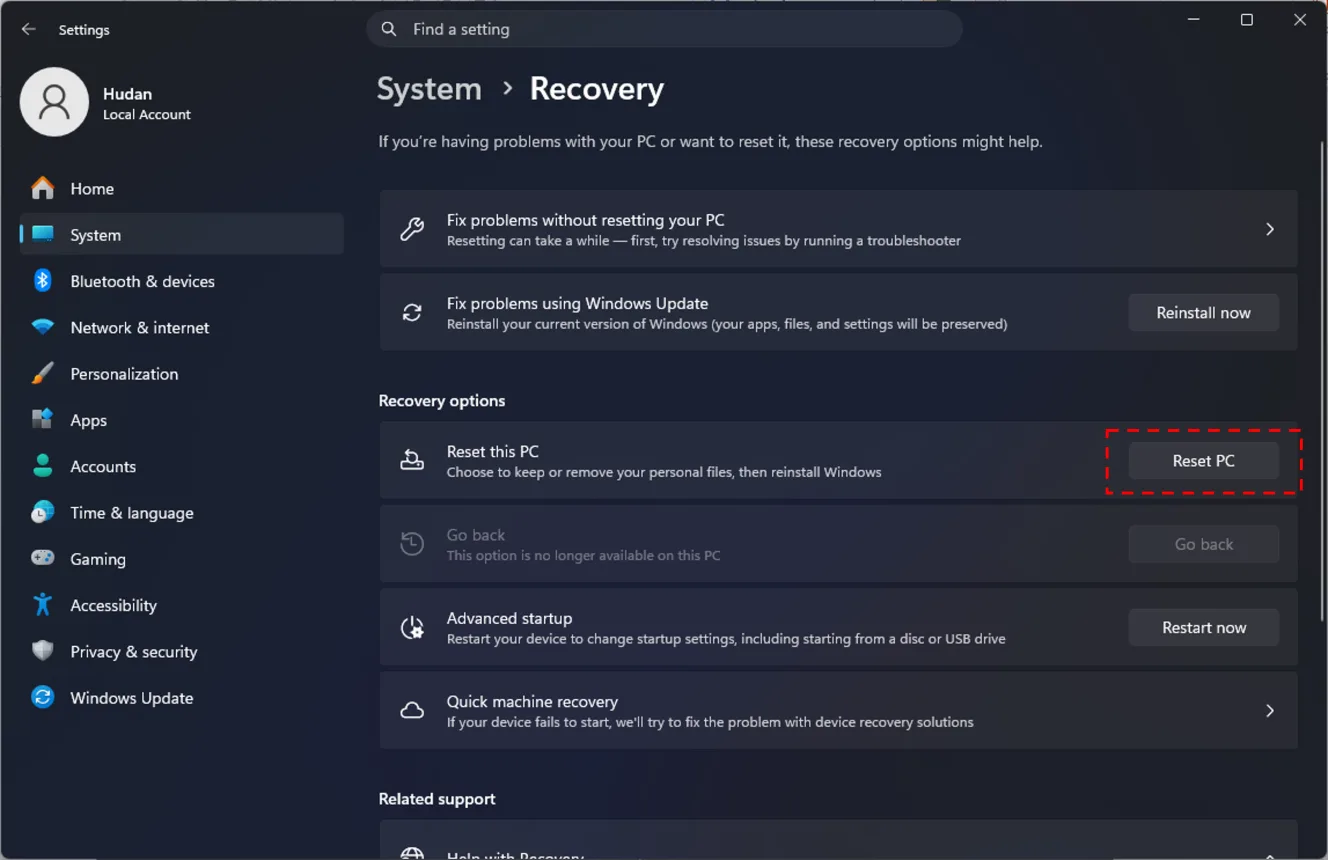
Under section Recovery options, You will see options Reset this PC. Click the button Reset PC to start the process.
3. Determine Data Deletion Method
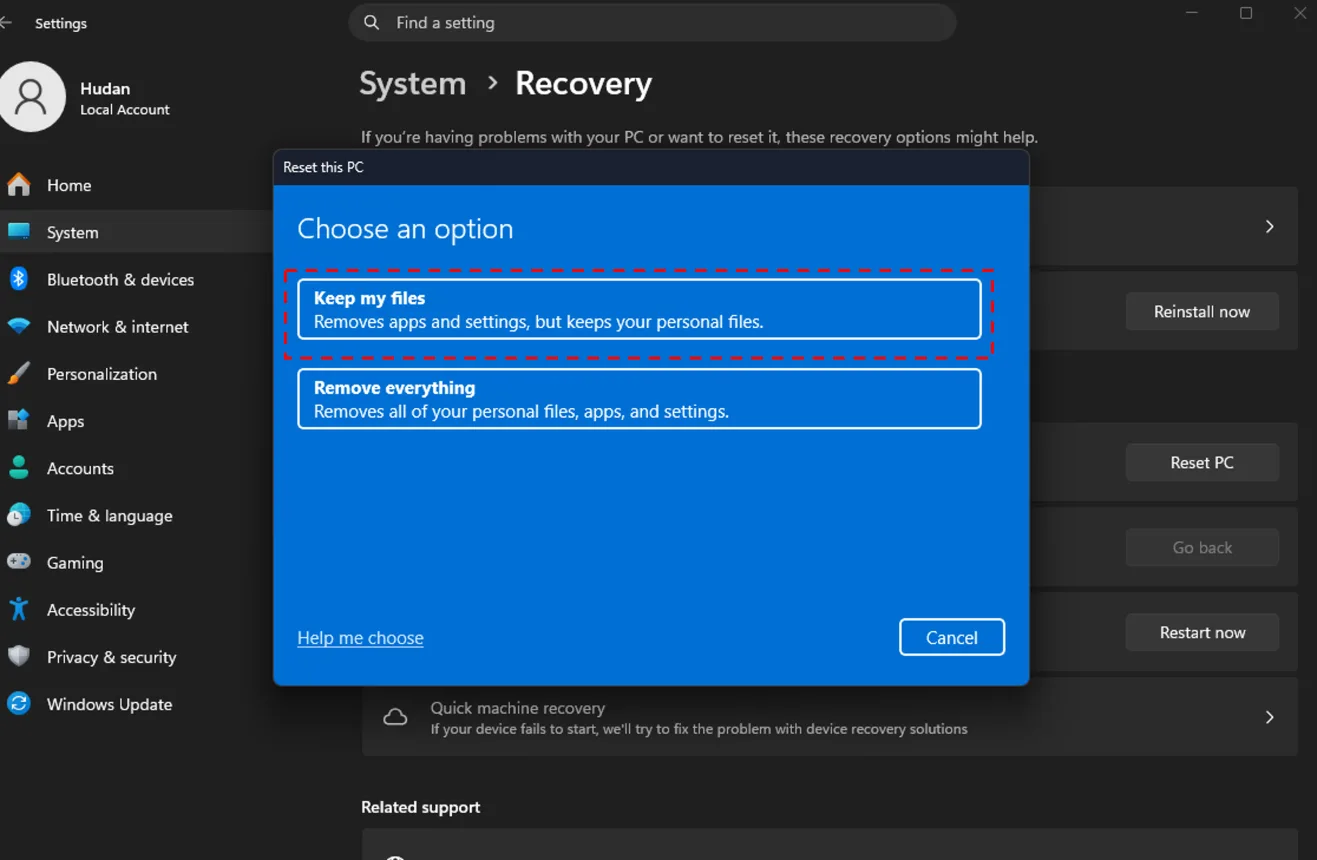
You will be given two options:
Keep my files: Delete the app & arrangement, personal documents remain safe.
Remove everything: Delete all files, application, and settings.
4. Select How to Reinstall Windows
Cloud download: Downloading new system files from Microsoft servers. Requires a stable internet connection and sufficient data quota.
Local reinstall: Uses system files already on your device.
Notes: on some versions of Windows 11, the option to select a reinstall method may not be available. If there is no choice, the system will automatically use local files (Local reinstall) for the reset process.
5. Confirm and Start the Process
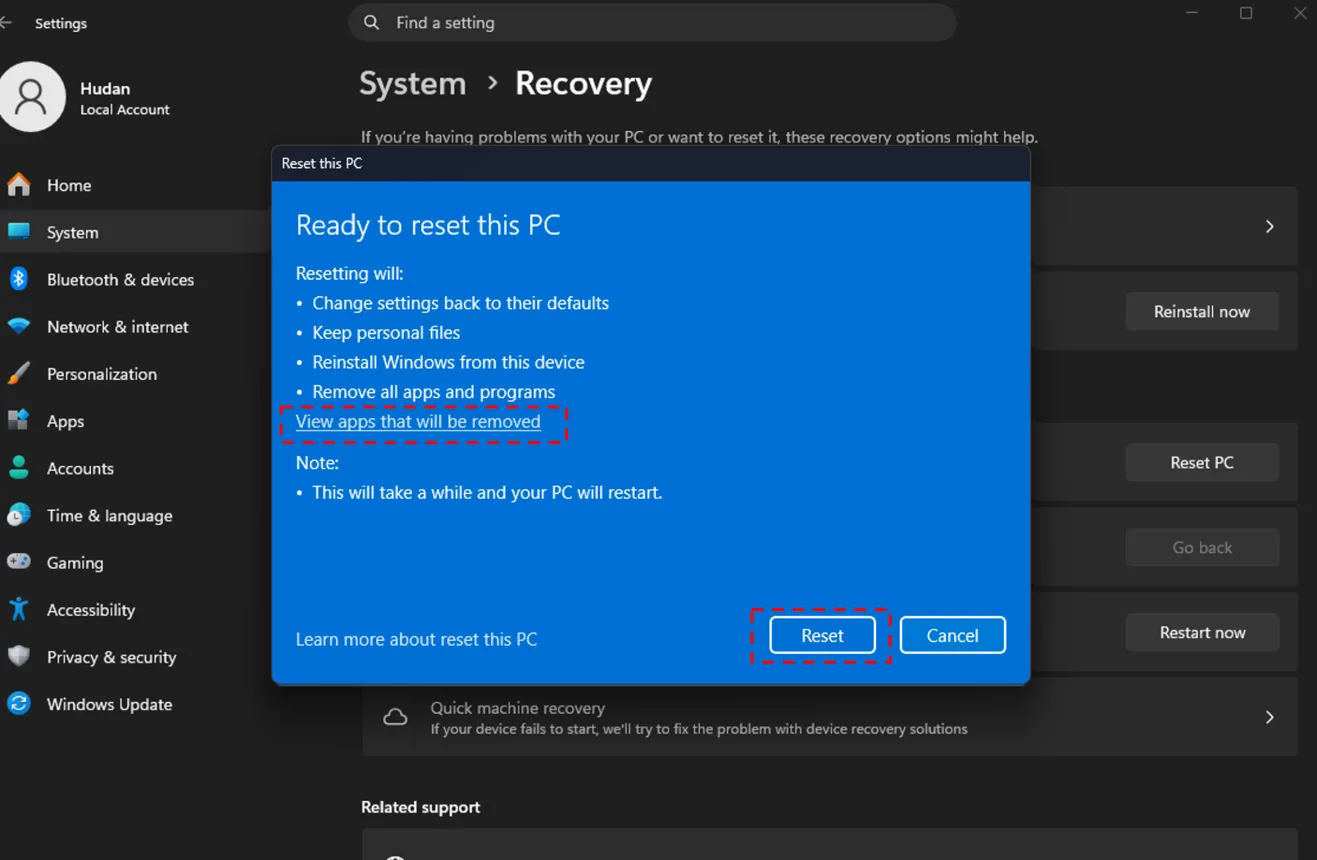
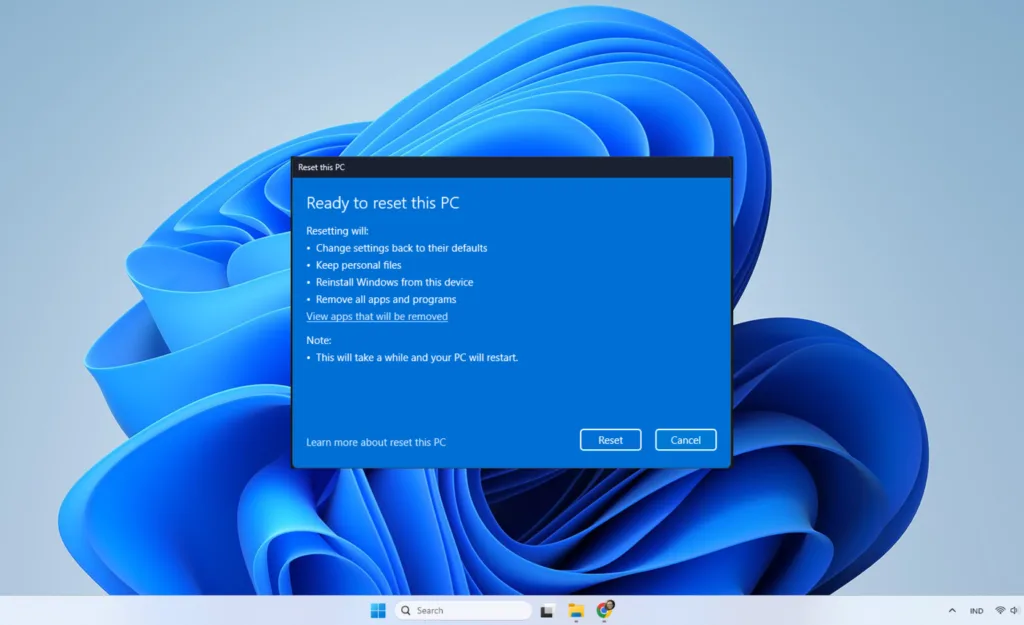
Pay attention to the information on the screen, You can see a list of applications that will be deleted by clicking View apps that will be removed, then click Reset if you are sure. The computer will restart and begin reinstallation. Make sure the device remains connected to electricity.
Cover
Reset This PC is reinstalling Windows 11 without flash disk, Practical solution when you don't have external media. With proper preparation and understanding of the risks that may occur, This process can run smoothly and help restore your computer's performance to like new. Before deciding to reset Windows 11, make sure you have done it backup important data and choose a method that suits your needs. Therefore, You can enjoy Windows 11 fresher and more optimal without the hassle of looking for a flash disk.