Here we will explain an easy way to copy text from a picture in Windows 11, so you don't need to retype the text in the image to copy it. By following this simple guide you can easily copy text from images directly using a free tool provided for Windows 11.
There are several tools that can be used to copy text from images, This guide will show you the two quickest and easiest ways to do it.
List of contents
Copy Text from Image using Photo
The first way to copy text from an image is to use the Photos application. The Photos application used in this guide is version 2025.11040.23001.0 which can be downloaded for free via Microsoft Store. Use Photos to copy text is relatively quick and easy to do, with just a few clicks. Here are the steps:
1. Open the image with Photos
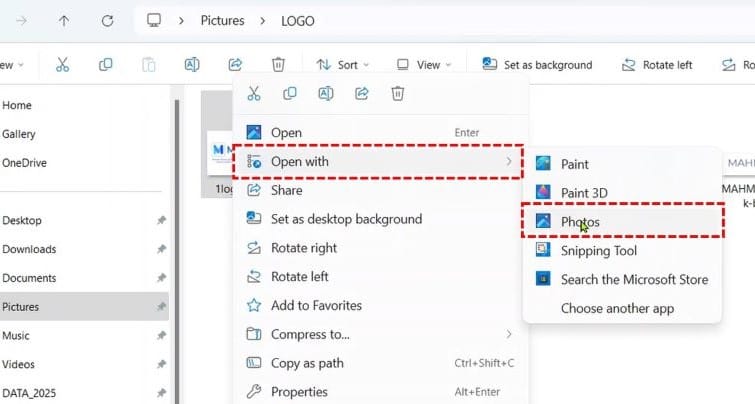
If your PC already has a Photos application, it is not the default application for opening images, then right click on the image you want to copy the text from, then select Open with, Then select Photos.
2. Scan Text on Image
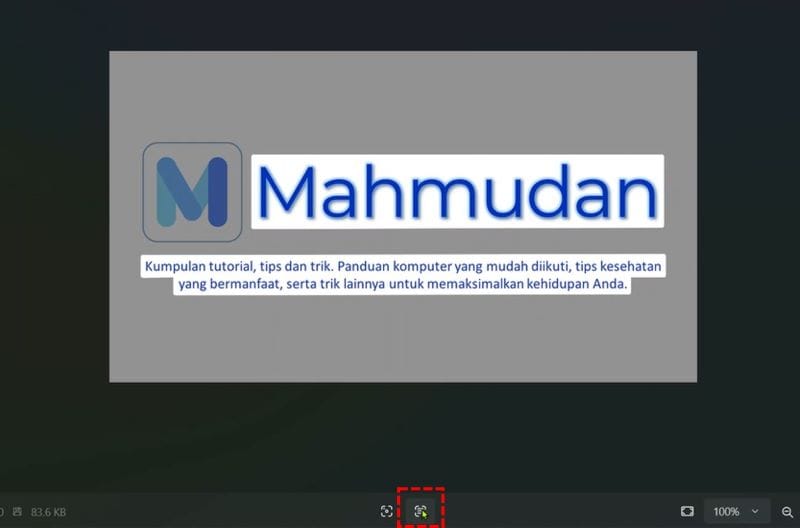
After the image opens on Photos, move the pointer down then select the icon Scan text. The system will start reading the text on the image within seconds.
3. Copy Text

Select all the text you want to copy, then select Copy text.
Copy Text from Image using Snipping Tool
The second way to copy text from an image in Windows 11 is to use the built-in tools in Windows 11 that is Snipping Tool. This tool is useful for taking screenshots on Windows PC, but you can also use it to copy text or extract email addresses and telephone numbers in images. The latest version of this tool has Optical Character Recognition function (OCR).
The version of Snipping Tool that is equipped with the OCR feature is 11.2308.33.0 or later. You can check the currently installed version of Snipping Tool by opening the application, then select the three dots in the upper right corner, Then select Settings. Scroll down until you can see the current version.
If Snipping Tools installed on your PC is an older version than that, you have to update it from Microsoft Store.
Steps to copy text from image using Snipping Tools
Total Time 2 minutes
1. Open the app Snipping Tools

To open the application Snipping Tools very easy, open the search box then type “Snipping Tools”
2. Open the image you want to copy the text from.

On the app Snipping Tools, click the three dots in the top right corner then select Open file then select the image you want to copy the text from.
3. Scan Text

After the image opens, at the top Snipping Tools, click the button Text actions to start scanning text from the image.
4. Copy Text

Next, you can copy part of the text by highlighting the text then pressing Ctrl + C, or copy the entire text with the button Copy all text.
Finished
That's two ways to copy text from a picture in Windows 11. By using one of these two free tools, You can copy specific text or all the text from an image quickly and easily with just a few clicks.
You can paste the copied text in any text editor on PC. Just access the text area, then right click there, Then select Paste or press Ctrl + V
Hope it is useful.