This guide will explain the basics of Excel as well as how to create tables in Excel. Tables in Excel can be created in several ways, tables in Excel can be designed automatically using table style templates or manually such as create a table in Word.
Working with Excel has its own challenges, The level of difficulty of working in Excel depends on the complexity of the data you are processing. If you want to create a simple report with Basic Excel formulas such as addition and multiplication, You can create a table in Excel by following this guide.
List of contents
Introduction to Excel
In the Excel Workbook there are several worksheets called Sheet, innately present Sheet1, Sheet2 And Sheet3. You can add or delete sheet, You can also change the name sheet the.
Each sheet consists of many columns and rows, The meeting between columns and rows is called a cell. On cells This is where you can input and process data.
Each column in Excel is represented by the letter A, B, C and so on, and each line is represented by a number 1, 2,3 and so on.
Cell identity is determined by the column name and row number that intersect each other. Example column A row 2, Ist Baris 4, and so on. On Excel, To simplify it, just write the column names and row numbers. Sample, column A row to 2 written A2, column B row to 3 written B3, and so on.
Basic Excel Tips:
- To refer to a cell, write the column name and row number. Sample: B3.
- To highlight multiple cells across multiple columns and rows, written with a start cell and end cell, and separated by a colon. Sample: B3:C9
- To enter data into cells, click on the cell, then type the data. To change cell data, double click on the cell.
- Apart from entering directly into the cell, data can also be entered via formula bar (formula bar).
- To move between cells, press the button Tab or Enter
- Writing formulas or functions must begin with the sign " = “
How to Create a Table in Excel
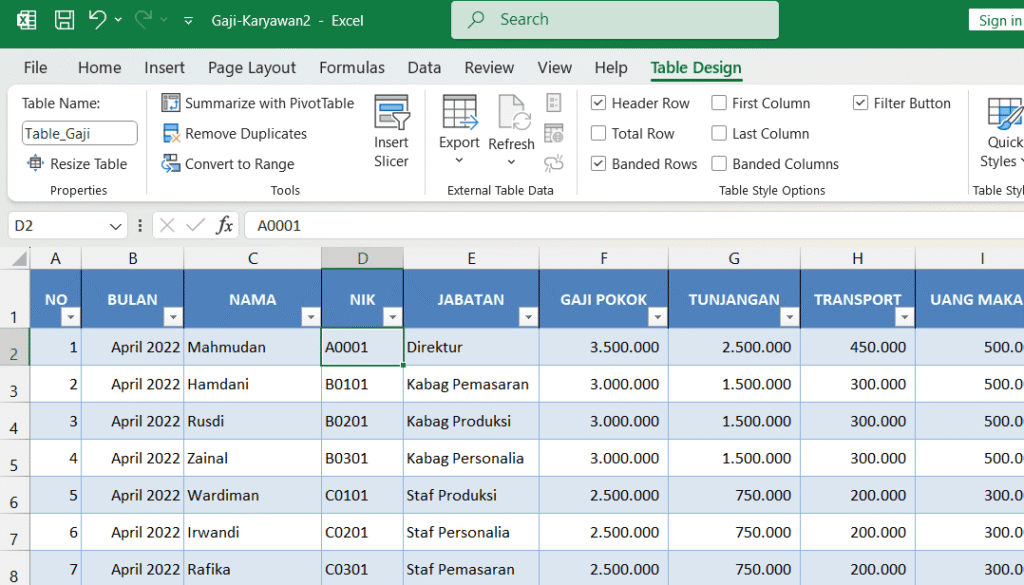
Actually Excel tables are not like that table in Word, A table in Excel is not just a combination of several cells with column boundaries. In Excel, A table is said to be a table if it has been stated or declared as a table or given a name as a table.
A table in Excel can be declared using Insert Table And Format as Table. By using these two tools, Excel's algorithm will know that you have created a table and will activate the tab Table Tools – Design. Besides that, declaring a table in Excel can increase effectiveness in applying Excel formulas.
The table design tool provides a variety of table styles that you can use to quickly create tables in Excel. In addition to using the style provided, You can also design the table in your own style.
Regardless of whether you want to declare a table or not, You can still design multiple cells, for example, giving a border or color to some cells so that they look like a table, like a table in Word.
Use Insert Table
By using the menu Insert Table, The table will be designed according to the selected style. The selected table style affects the color of each cell in the column and row headers of the table.
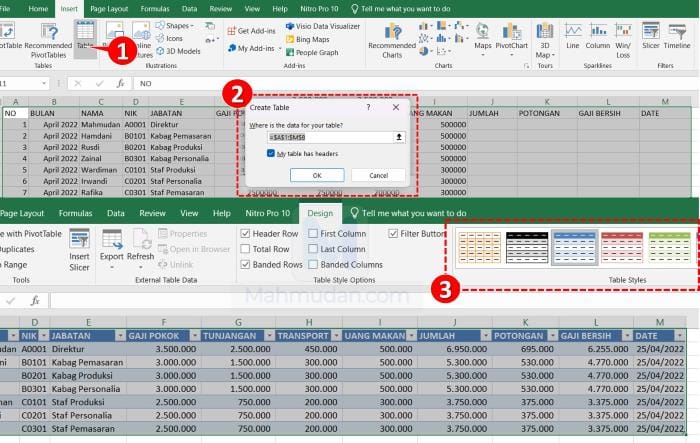
How to use Insert Table is to highlight all the cells that you want to make into a table, by clicking on the first column title then dragging it to the last row in the last column. Once the cell is highlighted, do the following:
- Select the tab Insert, then select Table.
- In the dialog box Create Table, click My table has headers, then click OK
- After the table is formed a tab will appear Design. On tabs Design part Table Styles, choose the table design you like.
Use Format as Table
Use Format as Table the same as using Insert Table, This tool will design the table according to the selected table style.
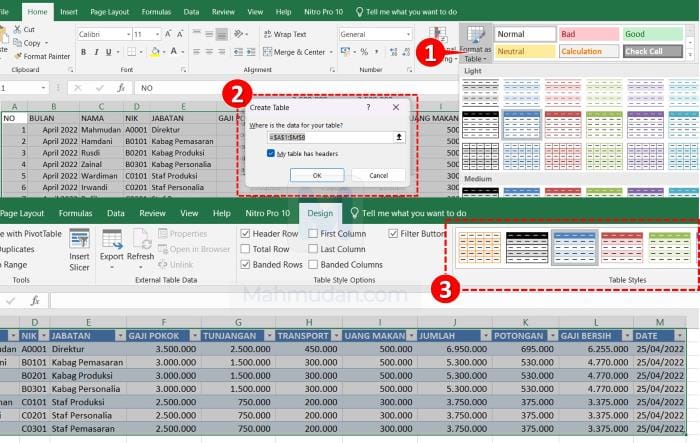
How to use Format as Table is to highlight all the cells you want to make into a table by clicking on the first column title then dragging to the last row in the last column. Once the cell is highlighted, do the following:
- On tabs Home, click Format asTable.
- In the dialog box Create Table, click My table has headers, then click OK
- After the table is formed, on tabs Design, in part Table Styles, choose the table design you like.
Designing Tables
With or without using the menu Insert Table or Format as Table, You can still design the table according to your needs. By designing custom tables, You can make adjustments to your specific wants or needs for the table you create. You can add or remove border lines and change the color of each cell.
Create Column Titles
Tables generally consist of one or more columns, Each column consists of a column title and column contents consisting of one or more cells.
To enter data as column headings, do the following:
- click on the cell A1 then type the column title, sample: NO,
- to move to the next column cell, press the button TAB on the keyboard.
- repeat the two steps above to create other column headings.

Once you have finished creating column headings, You can fill in data for each column such as Name, NIK and so on. To move to the cell below it, press ENTER.
Adjusting Table Column Width and Row Height
You can adjust the column width and row height of the table as needed. To adjust the column width or table row height, do the following:
- Point the pointer at one of the dividers so that the pointer changes shape to a double arrow, Then
- click and drag right or left for column width,
- click and drag up or down for row height.
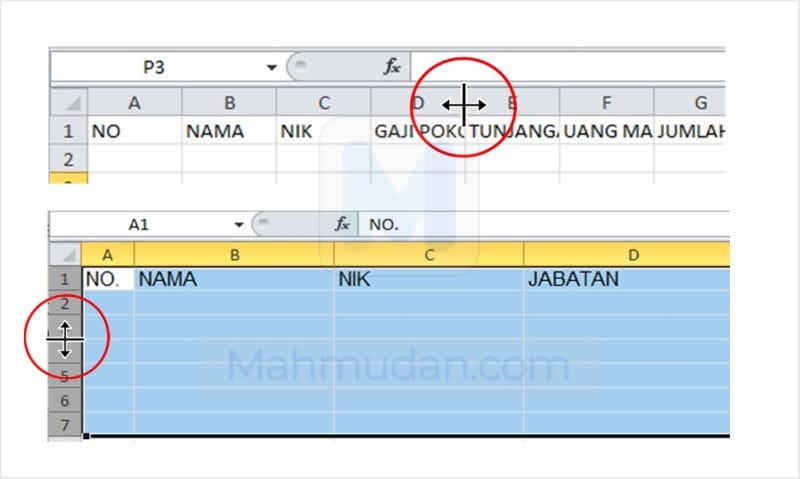
You can also adjust the column width or table row height automatically by double clicking on the column divider or row divider.
Create Border Lines on Cells
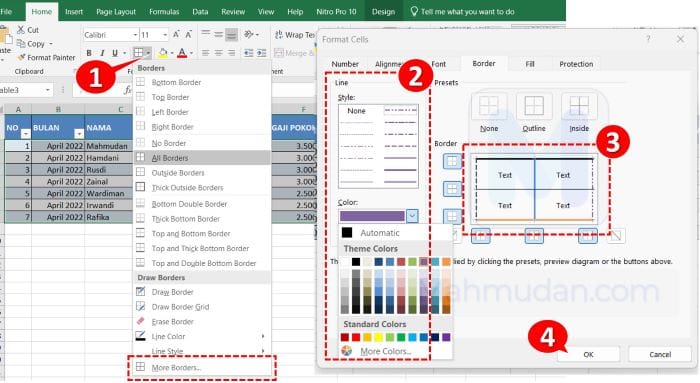
To create a dividing line for each cell, highlight all the cells you want to outline, then do the following steps:
- On tabs Home, part Font, choose Borders then click More Border.
- In the dialog box Format Cells, in the Line Select the desired border style and color.
- In the Border, Click on each side of the cells you want to add a border to
- Click OK to apply.
Giving Color to Cells
You can add different colors to some cells to make the table display more attractive and easy to see. To give color to cells, do the following steps:
- Highlight all the cells you want to color,
- On tabs Home, part Font, choose Fill Color (Theme Colors) then choose the color you want
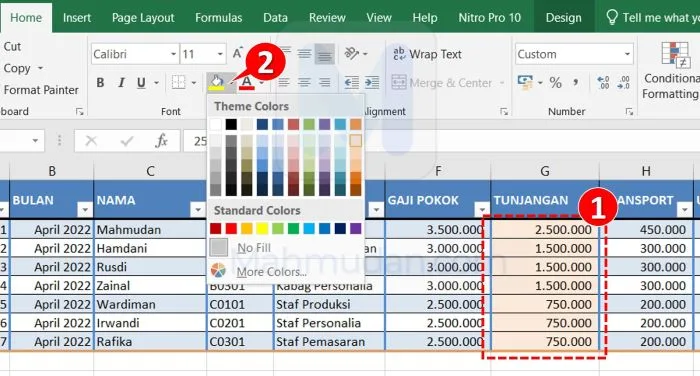
Apart from giving each cell a different color manually, You can also format each cell automatically using conditional formatting.
Insert Columns or Rows in Excel
Inserting a column or row in Excel is as easy as inserting a column or row in a table in Word. The method, Right click on the column or row you want to insert, then click Insert.
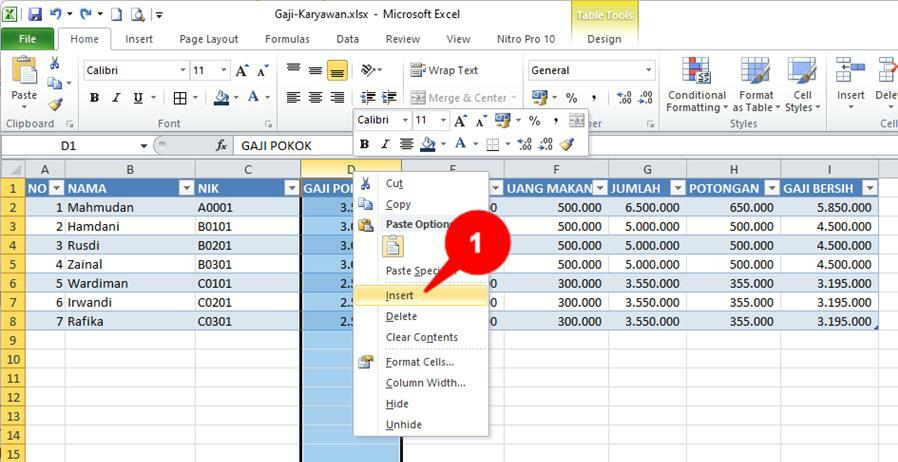
Conclusion
Different from table in Word, a table in Excel must be declared. Apart from that, You can create a table in Excel by giving borders and colors to the cells so that the cells are shaped like a table. After understanding and following the steps outlined above, You can declare a table in Excel and design it customly.
Working with Excel feels useless if you don't use formulas. Learn too how to create basic formulas in Ecel as well as Important Excel Formula Functions in Work. For you to know, The table we created in this example guide is the table we use for create a Mail Merge in Word with Excel data and this table can also be displayed on a web page, follow the guide displays an Excel table on a web page.
Hope it is useful