If you have tried various methods and failed to play the video on Powerpoint, You can try alternative ways in this guide.
This article explains the regular and alternative ways to display videos when showing slides using PowerPoint 2019 and PowerPoint 2010.
List of contents
Displaying Videos in the Normal Way
Displaying Videos in PowerPoint 2019
If you use Powerpoint 2021, You can add and play videos on slides without experiencing any problems or problems. You can smoothly display videos in your presentations.
Adding Videos in PowerPoint 2019
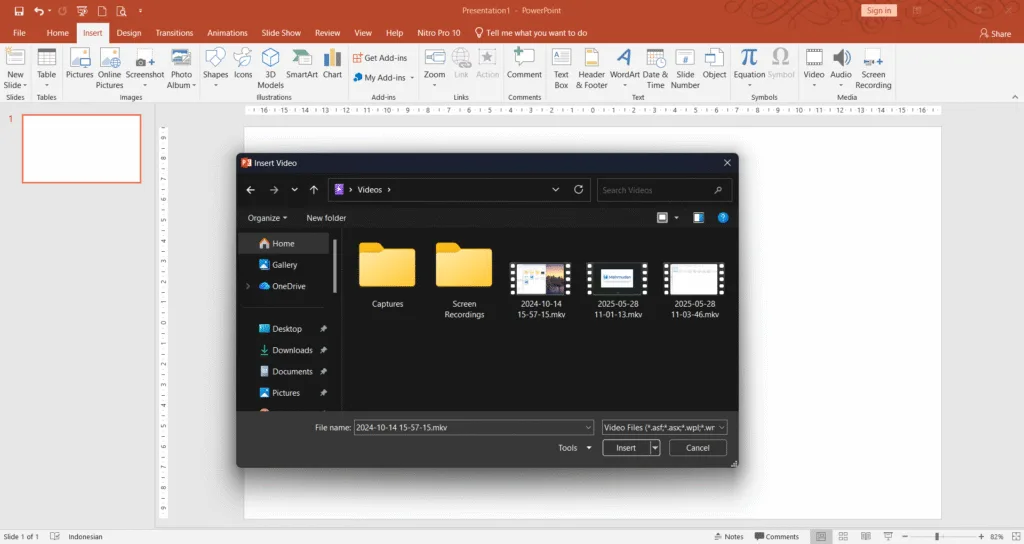
PowerPoint 2019 supports a wide variety of video formats including MKV And MP4. To add videos in PowerPoint 2019, do the following:
- On the slide you want to add a video, on tabs Insert, on the group Media choose Video Then select This Device.
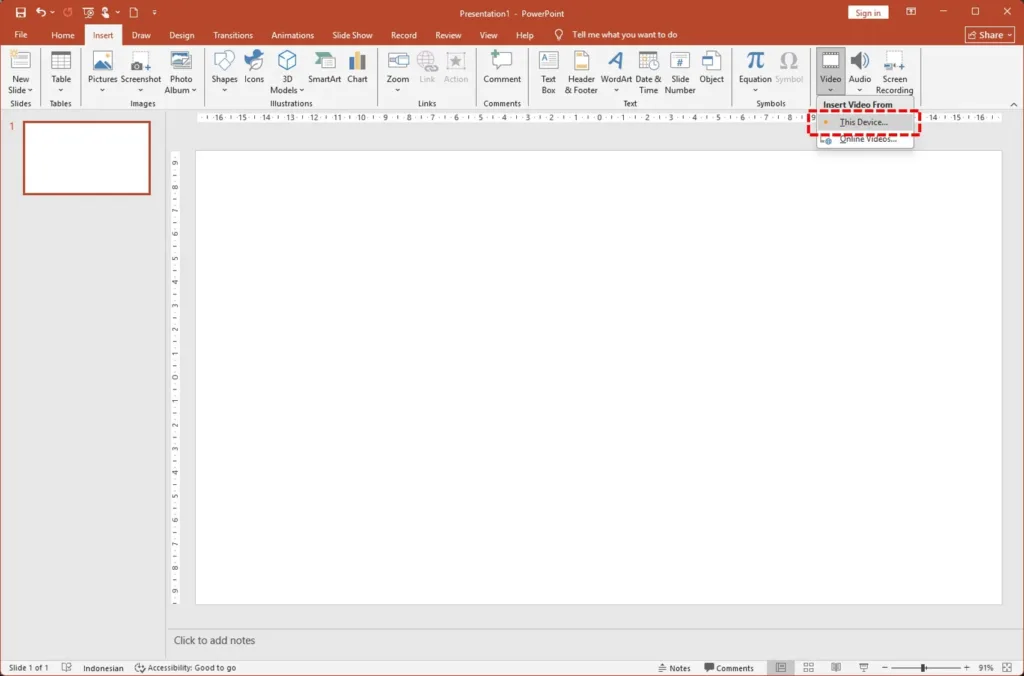
- Then select the video you want to add.

Playing Videos in PowerPoint 2019
After you add the video, click video, on tabs Playback, on the group Video Options, You can choose how the video will start, video playback options as follows:
- In Click Sequence: You can play the video by clicking anywhere on the slide
- Automatically: video automatically plays when showing slides.
- When Clicked On: You need to click on the video to play the video
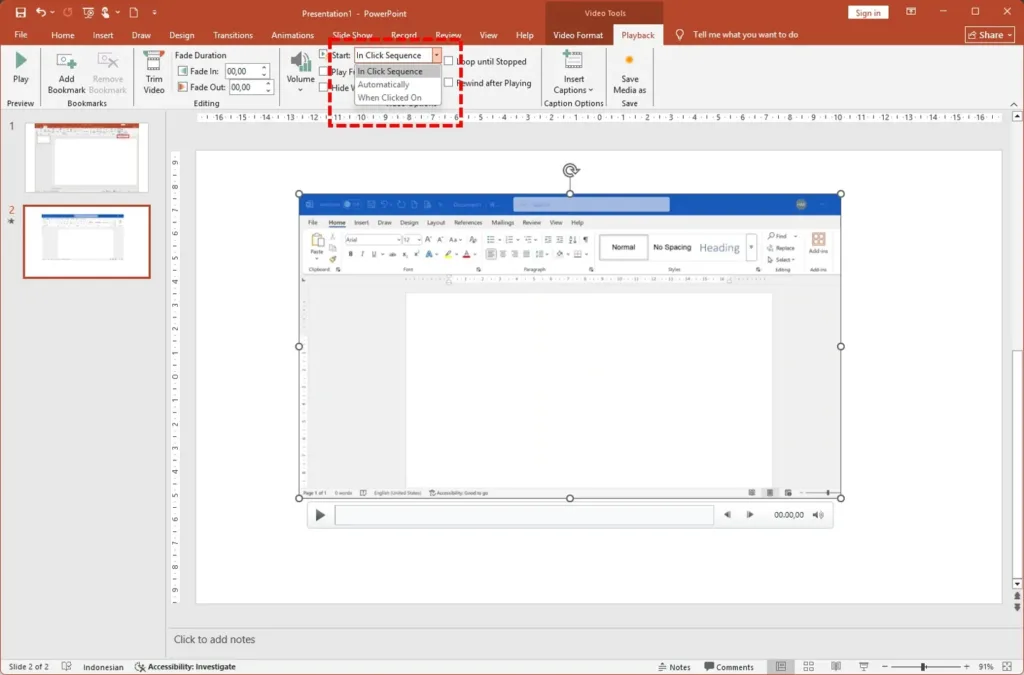
You can try choosing Automatically. When you show a slide (press F5), The video immediately plays smoothly without any problems.
Displaying Videos in Powerpoint 2010
If you use Powerpoint 2010, add and play videos on slides in Powerpoint 2010 not as easy as using Powerpoint 2019.
Adding Videos in PowerPoint 2010
PowerPoint 2010 only supports video format WMV and does not support other formats. To add videos in PowerPoint 2010, do the following:
- On tabs Insert, on the group Media choose Video Then select Videos from File.
- When you try to add a video with format MP4, A message will appear that PowerPoint cannot play the video, and asks you to install the player Apple Quick Time so you can add videos.
Solution: You need to install the player Apple Quick Time or change the video to WMV (Windows Media Video). You can change the video format to WMV use VLC Player.
After you do one of the solutions above, You can add videos in PowerPoint slides 2010.
Playing Videos in PowerPoint 2010
After adding video in PowerPoint 2010, to play it, click video, on tabs Playback, on the group Video Options, You can choose how the video will start, on Powerpoint 2010 the choice is:
- Automatically: videos play automatically when showing slides
- On Clicked: You need to click on the video when showing the slides
Based on Mahmudan's experience, when trying to add a video in MP4 format, the video cannot be played perfectly. But if you add a video in WMV format, Videos can be played smoothly but with a slight loss in quality due to compression.
From this experience, so that the video can be played properly and smoothly, Mahmudan has tried alternative ways to display videos when showing slides using PowerPoint 2010,
Displaying Videos in Alternative Ways
This alternative method is specific to PowerPoint 2010, because of PowerPoint 2019 or later versions can use the usual way to display videos smoothly.
Basically, The purpose of adding a video to a slide is to play the video while showing the slide. If so, the important point is to display the video without needing to close the slideshow.
So to display the video without needing to close the slideshow, There are other alternatives besides adding videos to slides. Another alternative way is to use hyperlink to open a video file from a slide and play it while showing the slide.
Creating Hyperlinks on Slides
Hyperlinks on slides can be used to open specific files from the slide, one of them is a video file. By adding a hyperlink that leads to the video file, The video can automatically be played by the video player application when you open the hyperlink. You can use free video players like VLC Player..
To create hyperlinks on slides, You can use a text box. To create a hyperlink in a text box, do the following:
- Create a text box then type text, for example Video 1.
- Right click on the text box, then select Hyperlink, then the dialog box Insert Hyperlink will appear.
- In the dialog box Insert Hyperlink, Select the video file you want to display by clicking the icon Open File
- On File Browser, select the video file you want to display. If you can't find the video file, change the search type to All Files(*.*).
- Once you find the video file, click OK to close File Browser
- Then click OK again to close the dialog box Insert Hyperlink.
Displaying Videos from Hyperlinks
After creating a hyperlink to your video, You can try showing the slide then open the hyperlink by clicking on the text Video 1 to display your video.
If you use Windows 10 or Windows 11 and have installed the update 22H2, You may see a security warning, just click Yes And Ok. After that your video will play smoothly.
If you haven't installed the update 22H2, You may not see the warning and your video will play smoothly.
Conclusion
The normal way
Plus:
- Videos can be played automatically
Minus:
- Presentation file size (*.ppt) bloated because it contains video files in it.
- Can only be used on the latest version of PowerPoint, Office 2013 up.
- If you use Office 2010 down, must install Quick Time Player or change the video format to WMV.
Alternative Method
Plus:
- Presentation file size (ppt) normal because it does not contain video files in it.
- Can be used on older versions of PowerPoint
Minus:
- Videos cannot be played automatically
These are the usual ways and alternative ways to display videos in Powerpoint 2019 and PowerPoint 2010
Hope it is useful