This guide shows you how to add handwritten fonts in Word, You can use this font in all Office applications such as Word, Excel or PowerPoint.
If you are starting to get bored with the default fonts in the Word application, You can add other types of fonts, for example, handwritten fonts in Word. Actually, the type of font used by the application Office like Word, Excel or PowerPoint is a type of font that is installed on the operating system Windows.
You just need to follow these six easy steps to add handwritten fonts in Word, Excel or Powerpoint.
List of contents
Steps to Add Handwritten Fonts in Word
Follow these steps below to add handwritten fonts in Word:
Total Time: 5 minutes
Visit Google Fonts
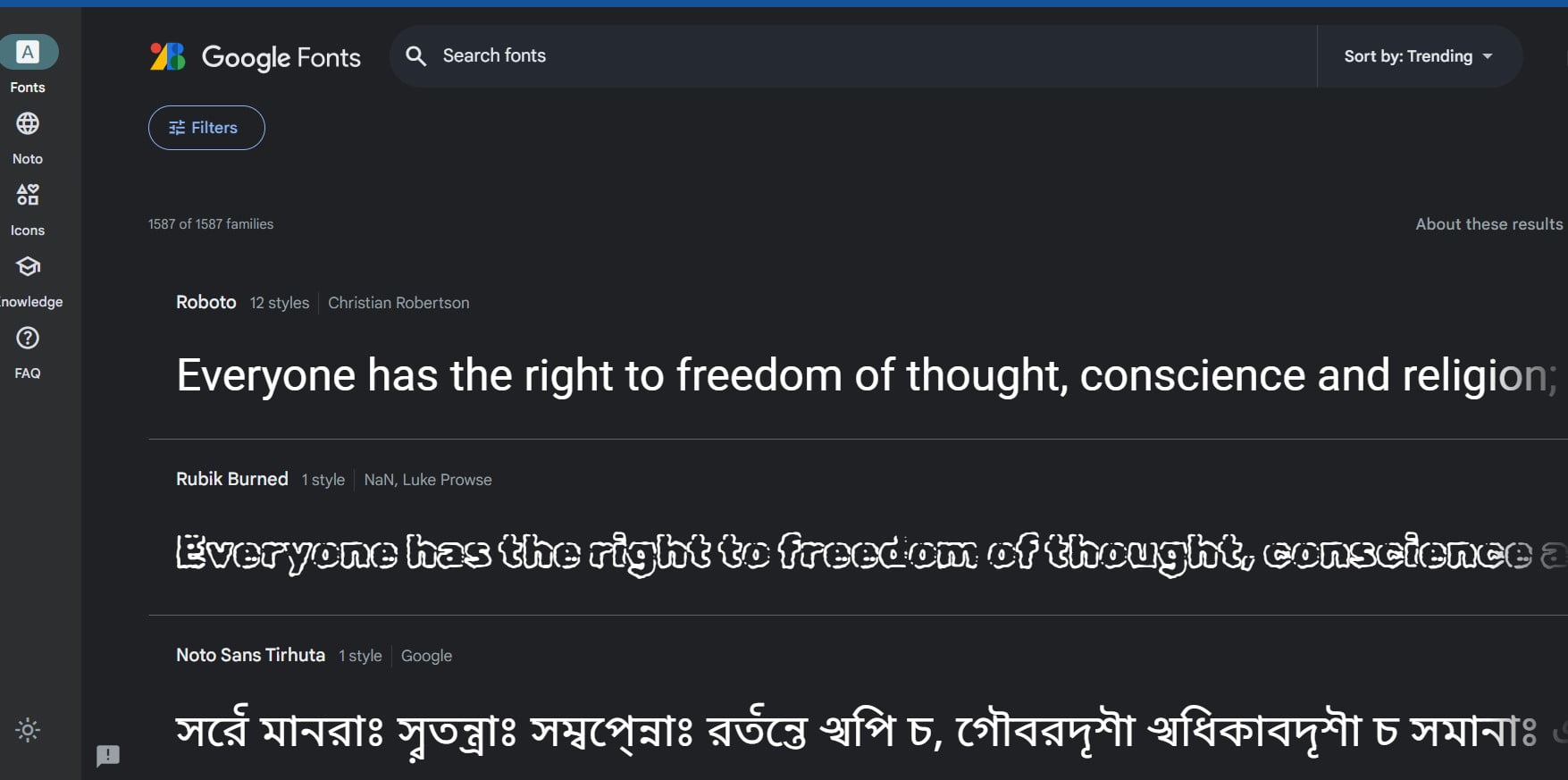
The first step is to visit the website Google Font, open the browser then type or click the following link https://fonts.google.com/. Google Font provides many types of fonts that can be downloaded for free. Page Google Font looks like the display above.
Choose a Handwritten Font
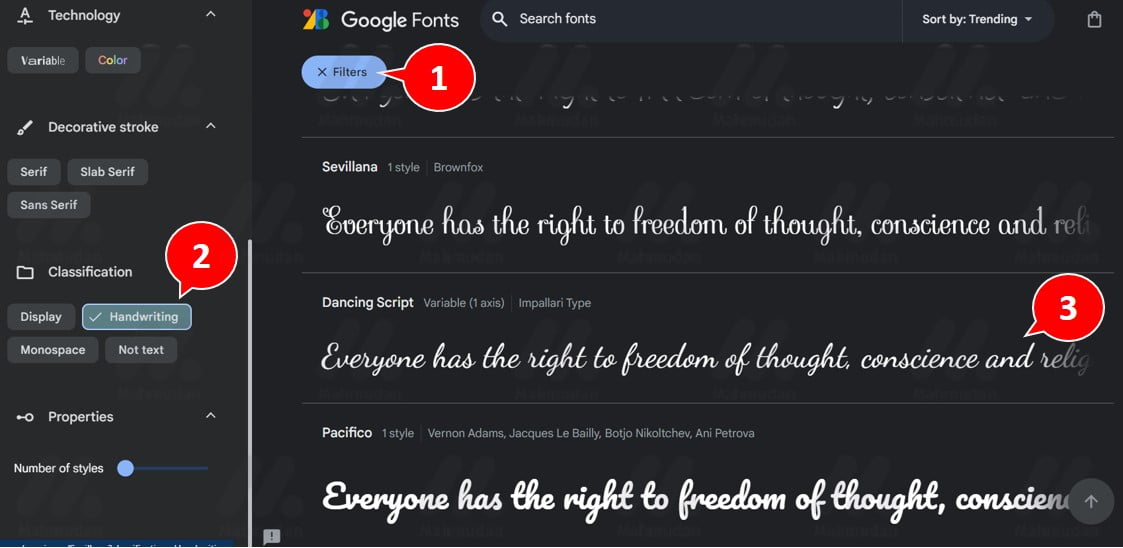
The next step is to choose the type of font on the website Google Font. Selecting a font in Google Fonts is quite easy, you can use Filters.
First, click Filters, then the Filters window will appear on the left side of the screen. On the left side of the screen, scroll down until you find Classification, then select Handwriting. Then choose one type of handwriting font that you like, example Dancing Sript.
Download Handwritten Fonts
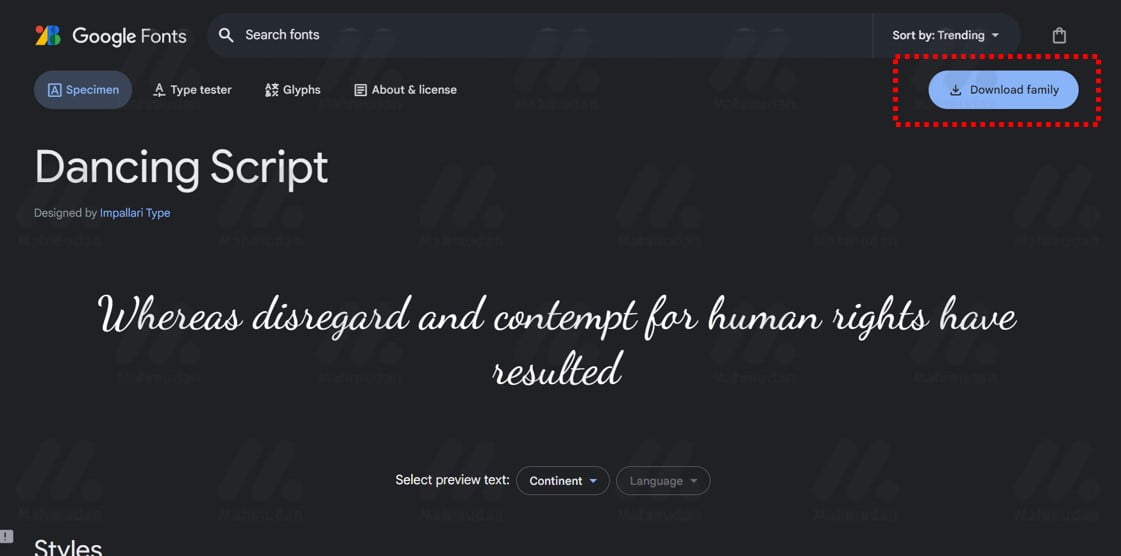
After selecting the font (Dancing Sript), The next step is to download the font. Click the button Download family which is in the upper right corner. The browser will download the compressed file with the name Dancing_Script.zip.
Open Font File
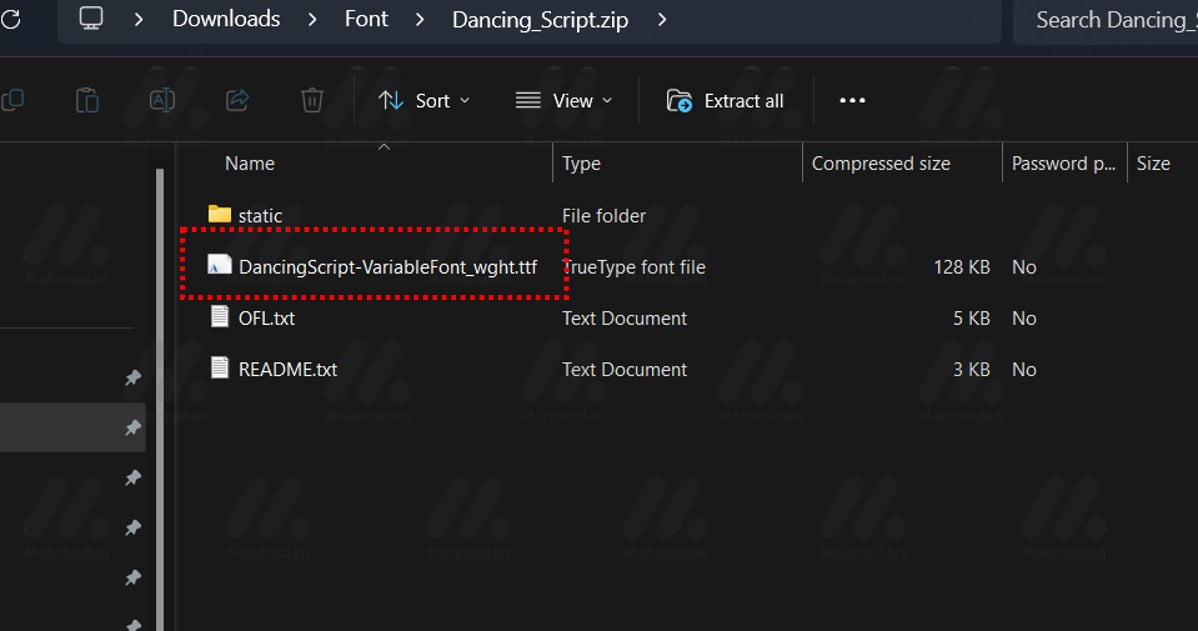
Double click the file Dancing_Script.zip to open it. If you are using Windows-11, You can open it directly without additional applications. If not, you need to install WinZip or WinRar to open this compressed file.
Install Handwriting Font
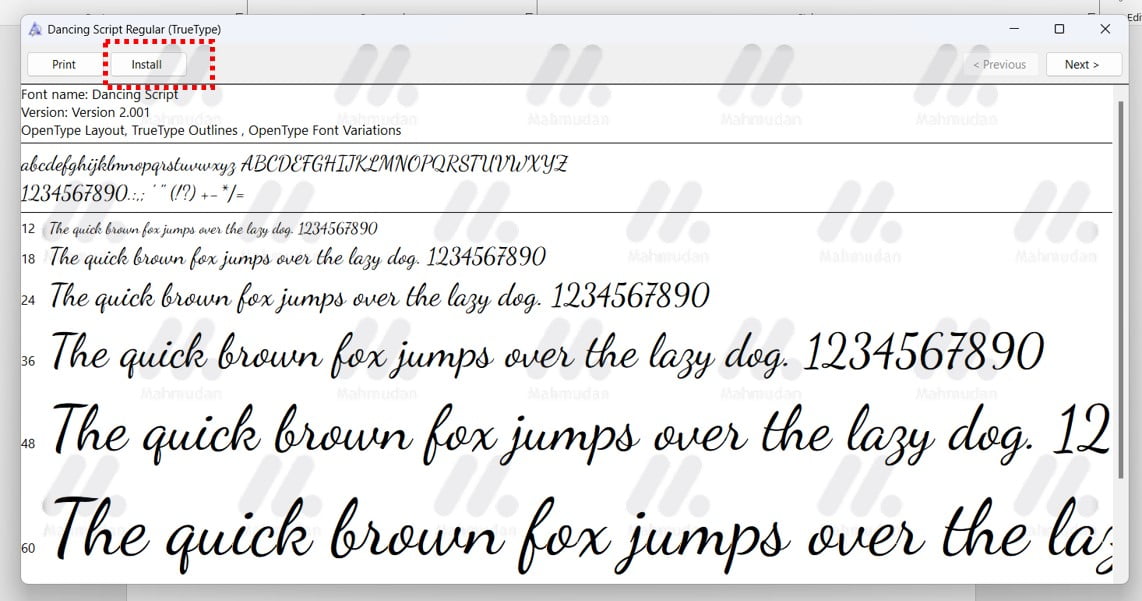
In the font folder there are several files, One of which is DancingScript-VariableFont_wght.ttf. Double click the file DancingScript-VariableFont_wght.ttf to display the font on the tool Windows Font Viewer, click the button Install to install the Dancing Script handwritten font.
Using Handwritten Fonts in Word
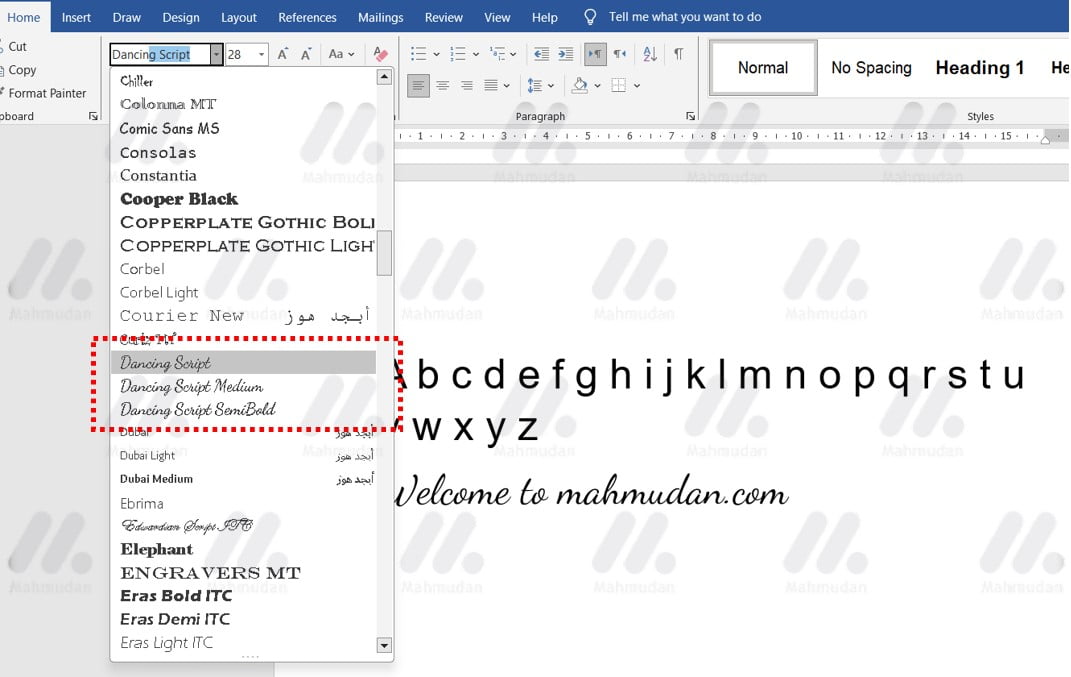
To use handwritten fonts in Word, You can do this by selecting the font in Word as usual. Open the Word application, on tabs Home, in the Font, search and select the type of handwritten font with name Dancing Sript.
Conclusion
After following 6 (anymore) simple steps as already explained, You should be able to use handwritten fonts in the Word application, Excel or Powerpoint.
If you can't find the font you just added, try closing and then reopening the application you are using. This step is required so that the application can load all types of fonts available in the system.
In addition to handwritten fonts, You can also download various other types of fonts that are available for free at Google Font, then install it in Windows-11. Also learn how change the default font in Word.
If you are still confused, take a look video on how to add handwritten fonts.
Hope it is useful.