This short guide explains how to change the mouse pointer size and color in Windows-11, helps those of you who have difficulty seeing the position of the mouse pointer on the computer.
A mouse pointer is a small image whose location is controlled by a pointing device, like a mouse, pena, or trackpad. When the user moves the mouse or moves their finger on the trackpad, The system changes the shape of the pointer according to its function.
By default, computer Windows has a standard mouse pointer size with a normal size, it even seems small, especially if you use a high resolution screen device. Usually, The standard pointer is arrow-shaped and white.
If you are bored with white, or difficulty seeing where the pointer is when working with a bright background, You can easily change the size and color of the pointer in Windows 10 or Windows 11.
Microsoft has improved accessibility for Windows users 10 and windows 11 by providing settings to change the color and size of the mouse pointer. Here's how to change the size and mouse pointer in Windows 10 and Windows 11.
How to Change Mouse Pointer Size and Color
The steps:

Follow these steps to change the mouse pointer size and color in Windows-11
Total Time: 2 minutes
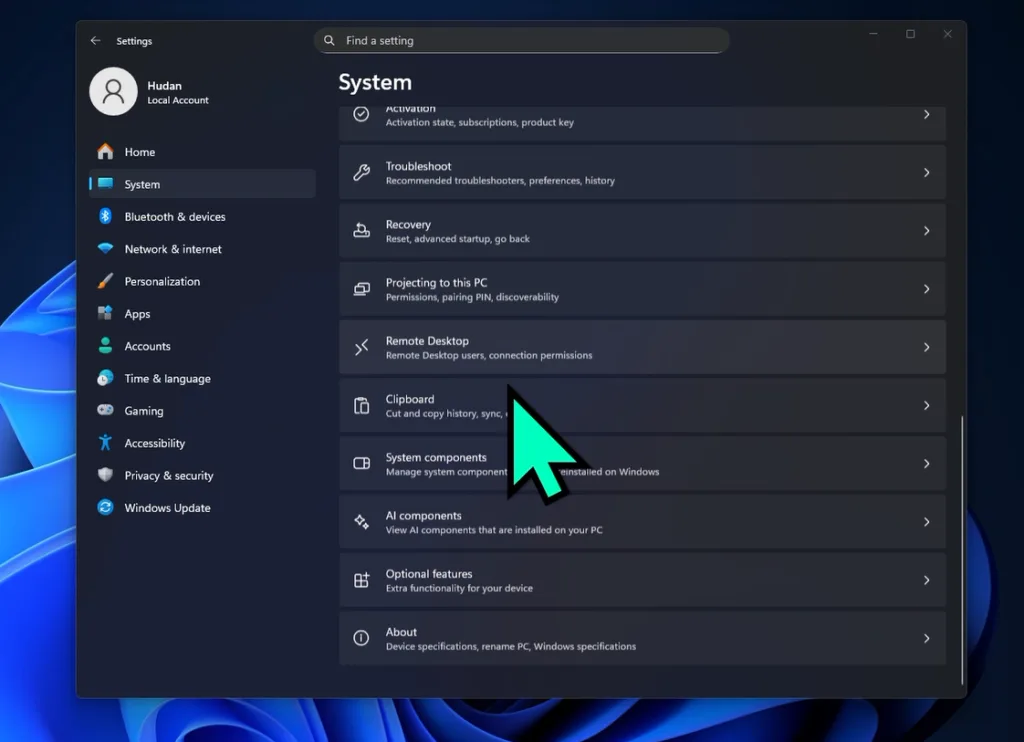
Step 1: Open Settings
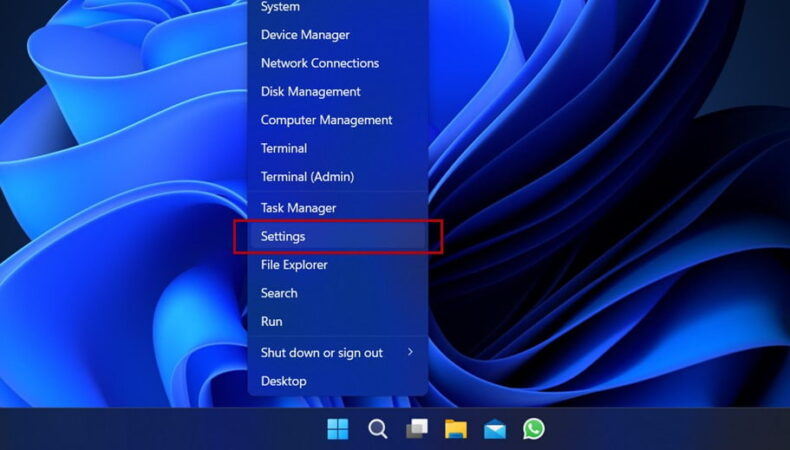
To open Windows settings 11, right click on Start Menu, then click Settings
Step 2: Select Mouse Pointer and Touch Settings

On the menu Settings, choose Accessibility Then select Mouse pointer and touch.
You can also access settings Mouse pointer via the search box.
Step 3: Change Mouse Pointer Color

In settings Mouse pointer and touch, Four mouse pointer styles are available viz White, Black, Inverted And Custom. Select the mouse pointer style Custom so the color options will appear. Select the color you want, You can also add other colors by clicking Choose another color
Step 4: Change Mouse Pointer Size

To change the size of the mouse pointer, just slide the blue dot on the resizer so that the size of the mouse pointer changes according to your needs.
Finished
By following the steps above, You should now have successfully changed the size and color of the mouse pointer so that it is easier to see.
Change the size and color of the mouse pointer in Windows 11 with sizes and colors that are easier to see, useful for increasing the accessibility of computer use, especially for elderly users.
You might be interested to learn how to create a new user in Windows-11 without using email
Hopefully it's useful.