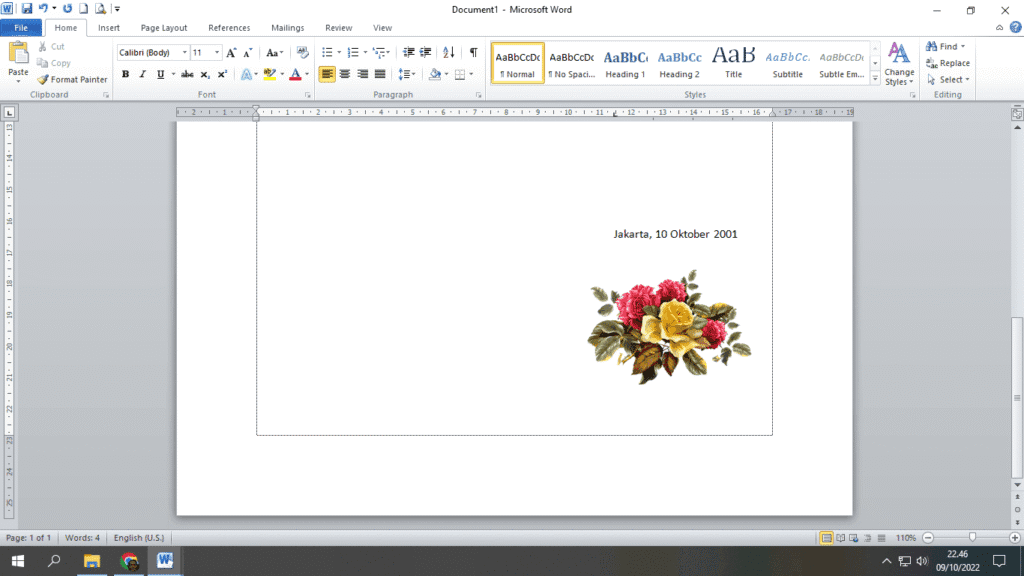
This short guide will show you how to change the size and position of images in Word in a very easy way.
If you have known How to insert a picture into Word, but still have difficulty placing the image as desired because the size and position of the image in Word does not match your needs, follow this short guide.
Example, Your goal in inserting an image is as a logo at the time create a letterhead in Word, then you need to place it in the top left corner, to be precise Header document, with dimensions of approximately 2.5cm x 2.5cm. For, You need to change the size and position of the image in Word.
By following the following steps, You can change the size and position of the image to the position you want, such as on the letterhead or at the bottom of the document.
How to Change Image Size in Word
When you add an image to theWord, either through the menuInsert or in a wayCopy-Paste, The image will appear in Word at its original size, The image position will be at the position where you placed the cursor.
To change the size of an image in Word, do the following:
- Click on the picture, then point the pointer exactly at one corner of the image so that the pointer changes shape to ↔ (two-way arrow).

- Click and slowly drag the pointer to the top left corner so that the image size changes in Word.

How to Change Image Position in Word
To change the position of an image in Word, do the following:
- Right click on the picture, then clickWrap Text, then selectInFront of TextorBehind Text.
InFront of Textmeans the image in front of the text, whereas Behind Textmeans the image is behind the text.

- After changing the position of the image to InFront of Text or Behind Text, The position of the image does not affect the position of the text around it. Thus, You can easily place the image wherever you want by clicking and dragging the image in the desired direction.
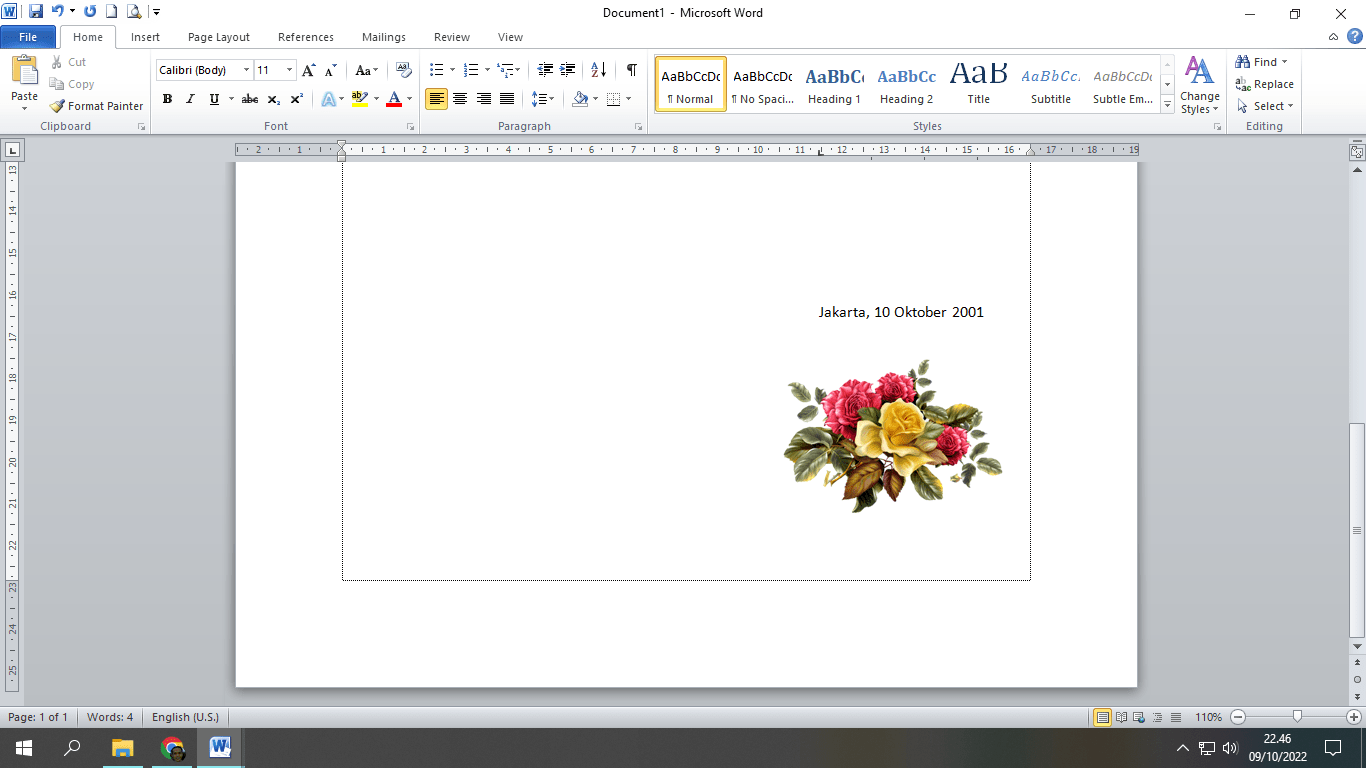
Finished, That's an easy way to change the size and position of images in Word. If necessary, you can also follow the steps flip an image or video in Powerpoint for Microsoft Word.
Hope it is useful. FollowChannel Youtube This is to watch other video tutorials